// blog
Put a DICOM Viewer on Your Website With Two Lines of HTML
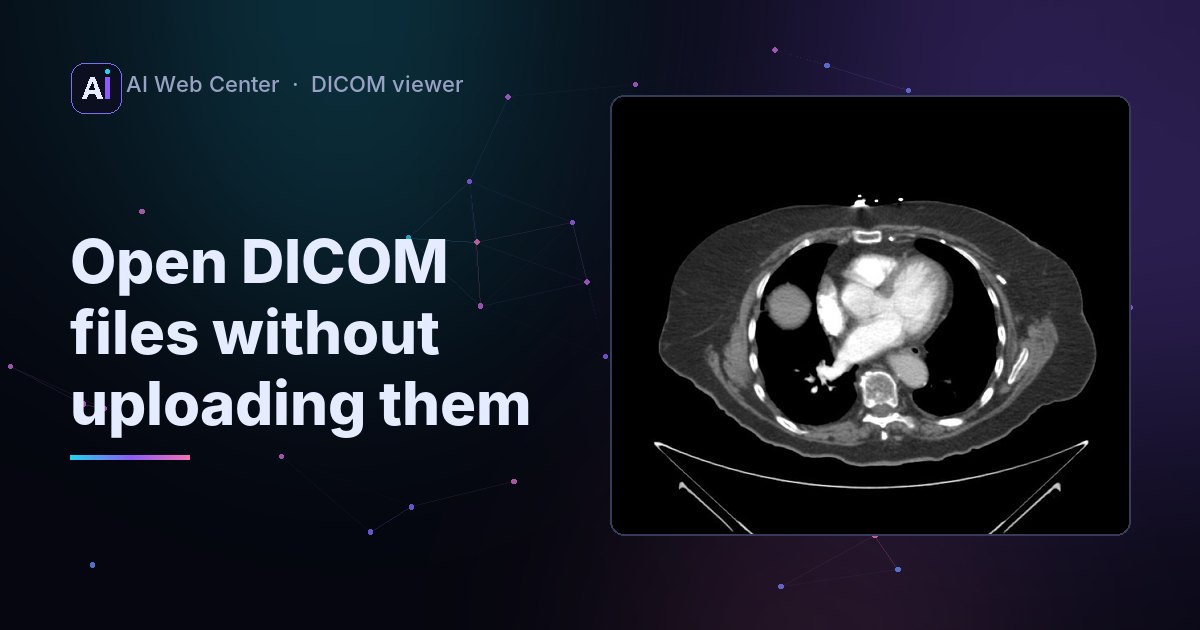
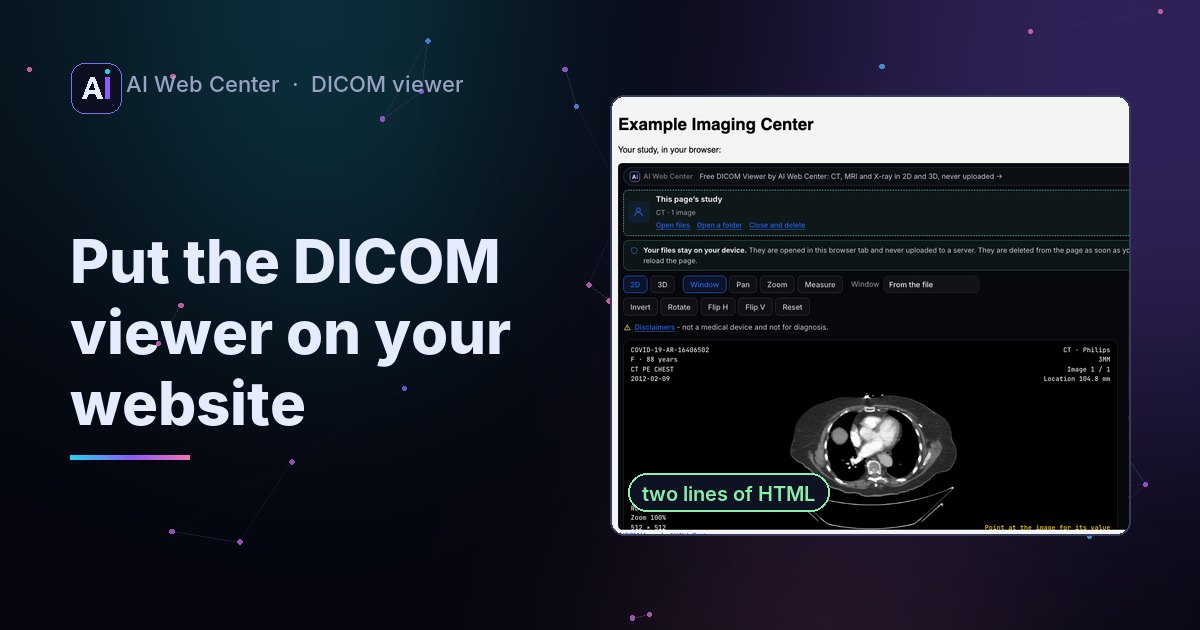
Paste a div with the study’s address and one script tag, and the free AI Web Center DICOM viewer appears on your page with the study open. Your page reads the file itself, so nothing changes on your server and files behind a login work. Leave the address out and visitors open or drop their own files. Nothing is uploaded, to you or to us. It’s only a viewer, with no sample scans, and not a medical device.
A patient asks for their scan. A student needs a case to scroll through. A referring office wants to look before the call. Most of the time the answer is a download link, and then the person on the other end has to find a program that opens DICOM. Many don’t.
Now your page can show the study itself. It’s our free DICOM viewer, embedded.
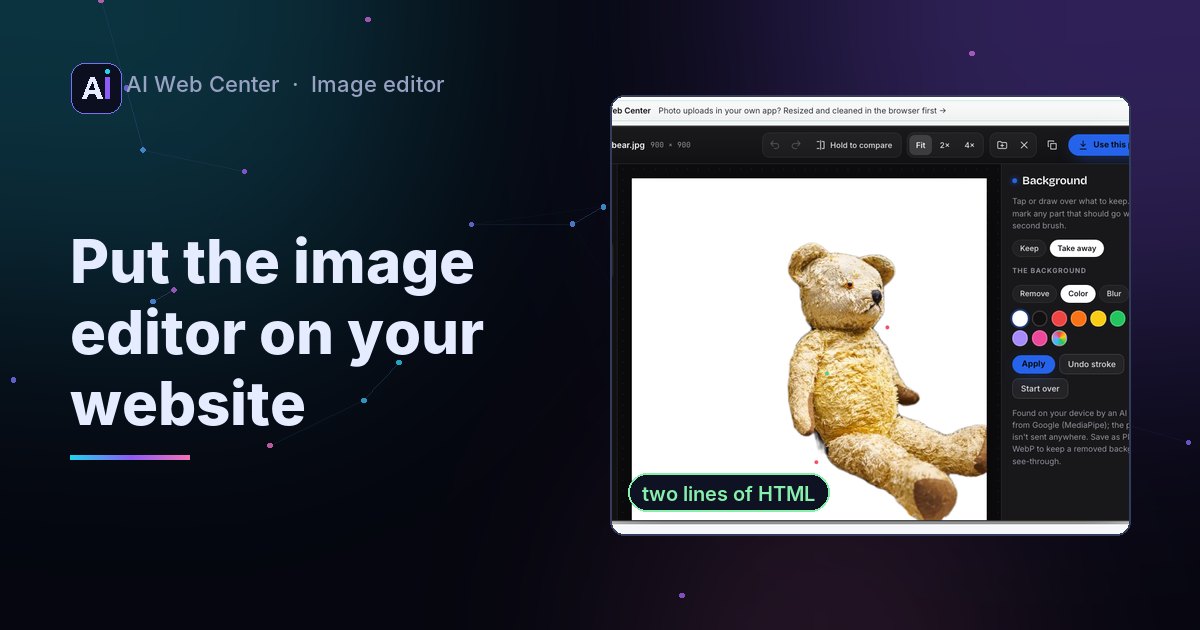
Two lines
<div class="aiwc-dicom" data-file="/studies/ct-chest.zip"></div>
<script src="https://aiwebcenter.com/embed/dicom-viewer.js" async></script>
The first line says where the viewer goes and which study to open: one DICOM file, a ZIP of a whole series, or several addresses separated by spaces. The second line loads it. One script tag is enough for any number of viewers on a page.
Your page reads the file
The viewer runs in a frame from our site, but it never fetches your files. Your page reads the study, as the visitor who’s signed in, and hands it to the viewer in their browser. So:
- Nothing changes on your server. No headers to add.
- Studies behind a login open for visitors who are signed in.
- The file never passes through our server.
Or let visitors drop their own
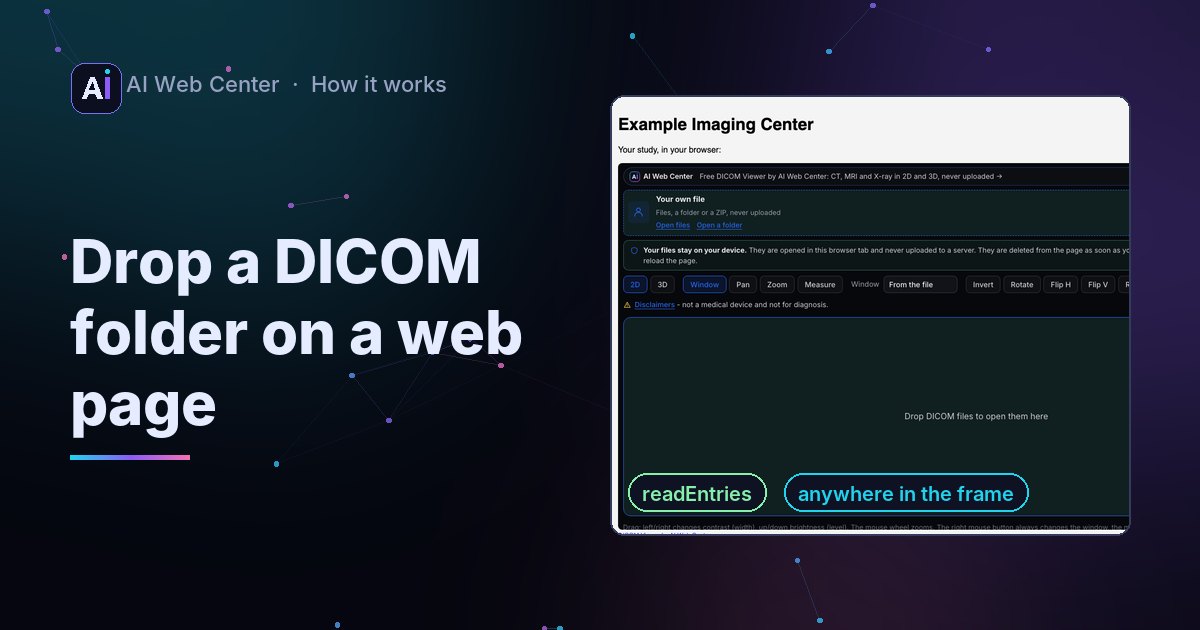
Leave out data-file and the viewer opens empty, ready for files. Visitors drop DICOM files, a whole folder (the DICOM folder from a patient CD, say) or a ZIP anywhere on it, or use Open files and Open a folder. Everything is read in their browser. Close and delete removes it, and so does leaving the page.
What it does
The same viewer as our own page:
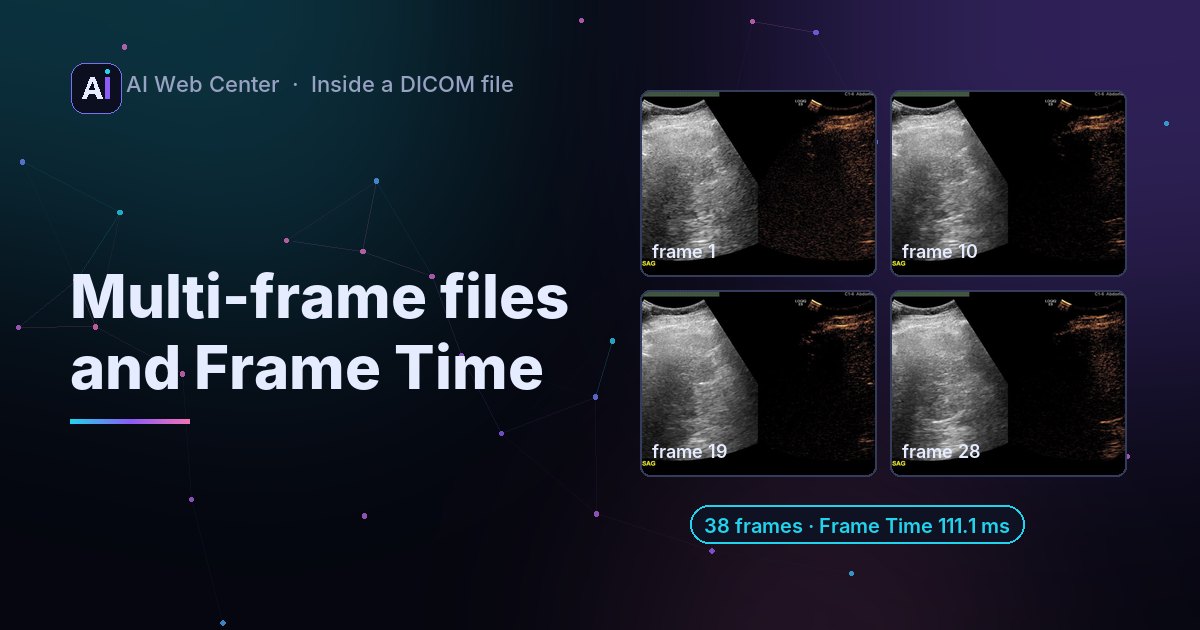
- Scroll through a series, or play a clip.
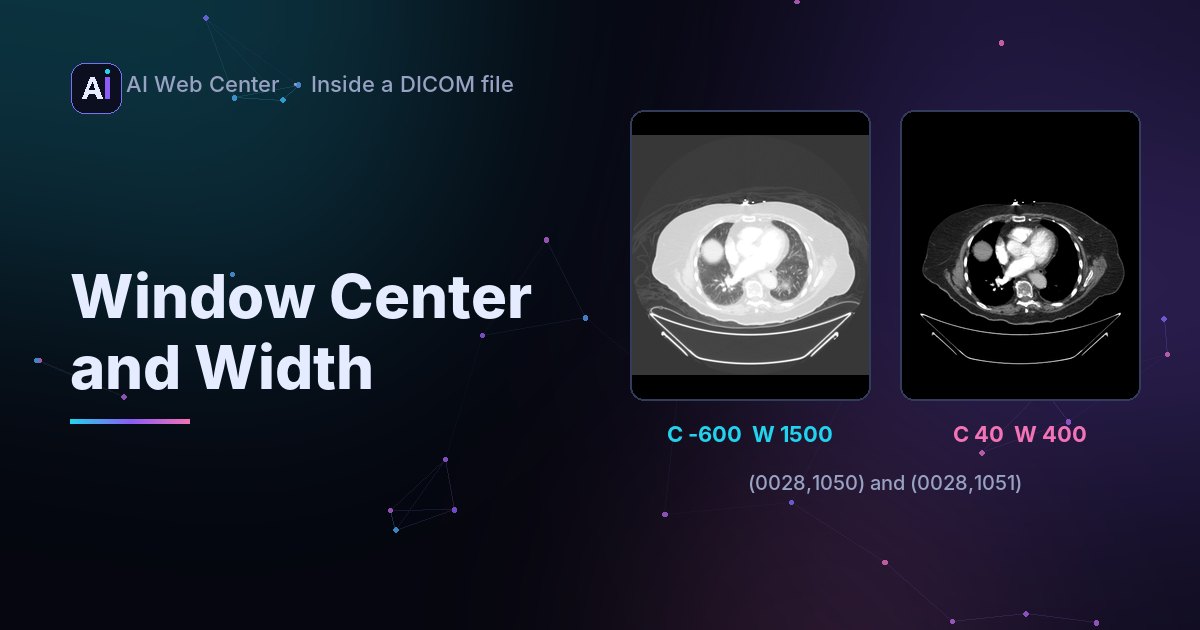
- Drag to set the window and level, with presets for CT.
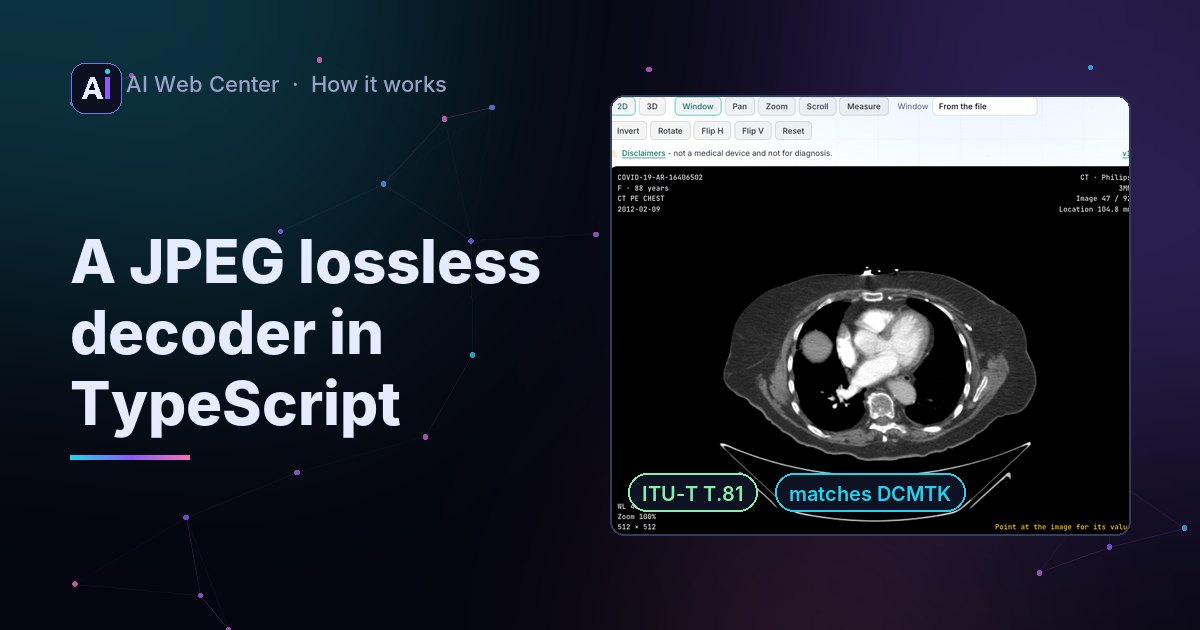
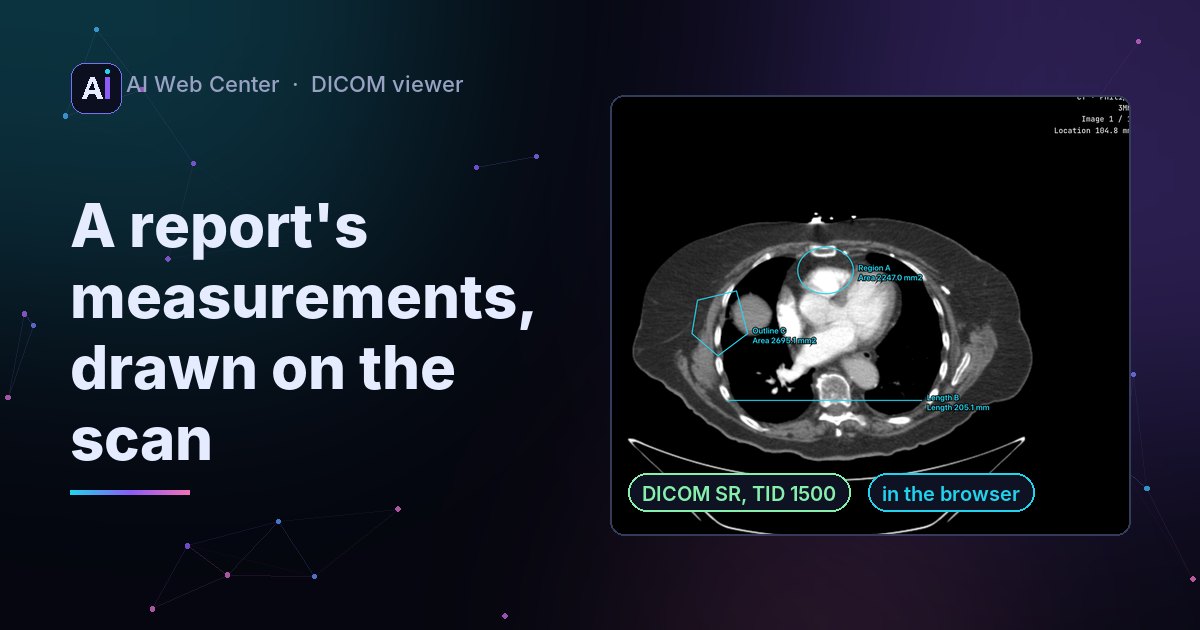
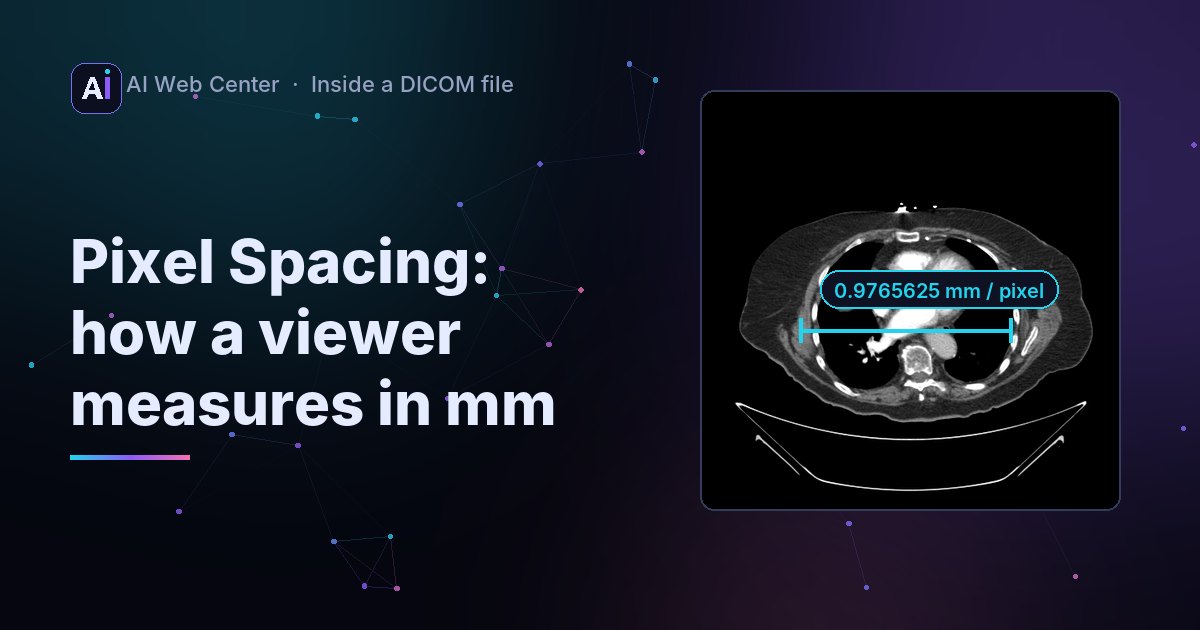
- Zoom, pan, rotate, flip, invert and measure in millimeters.
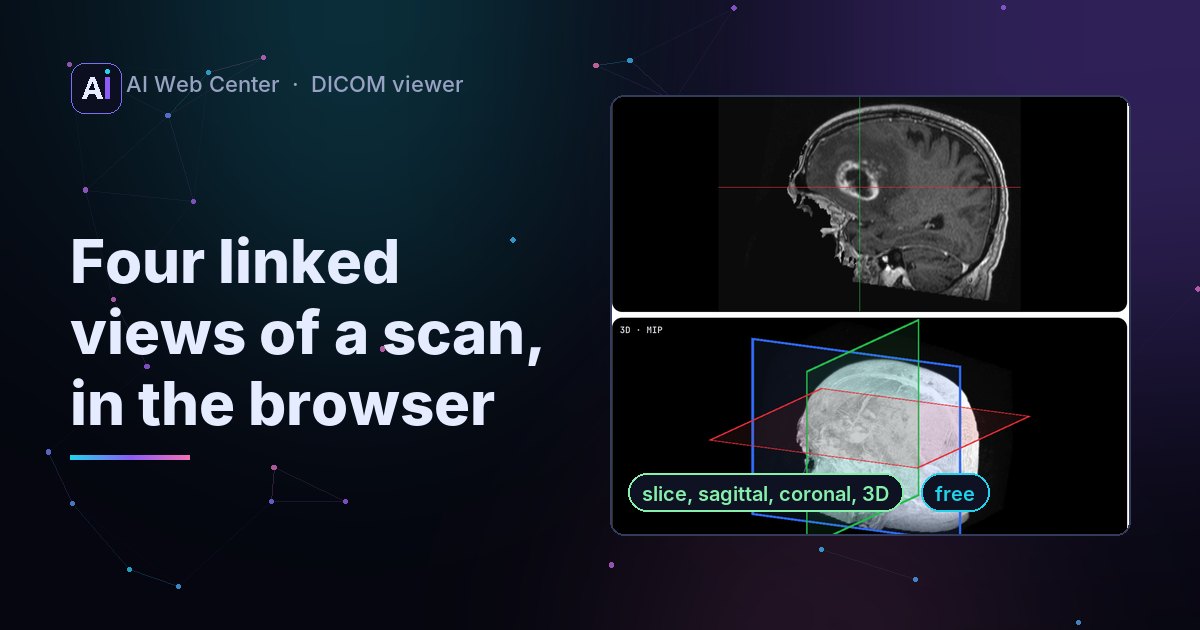
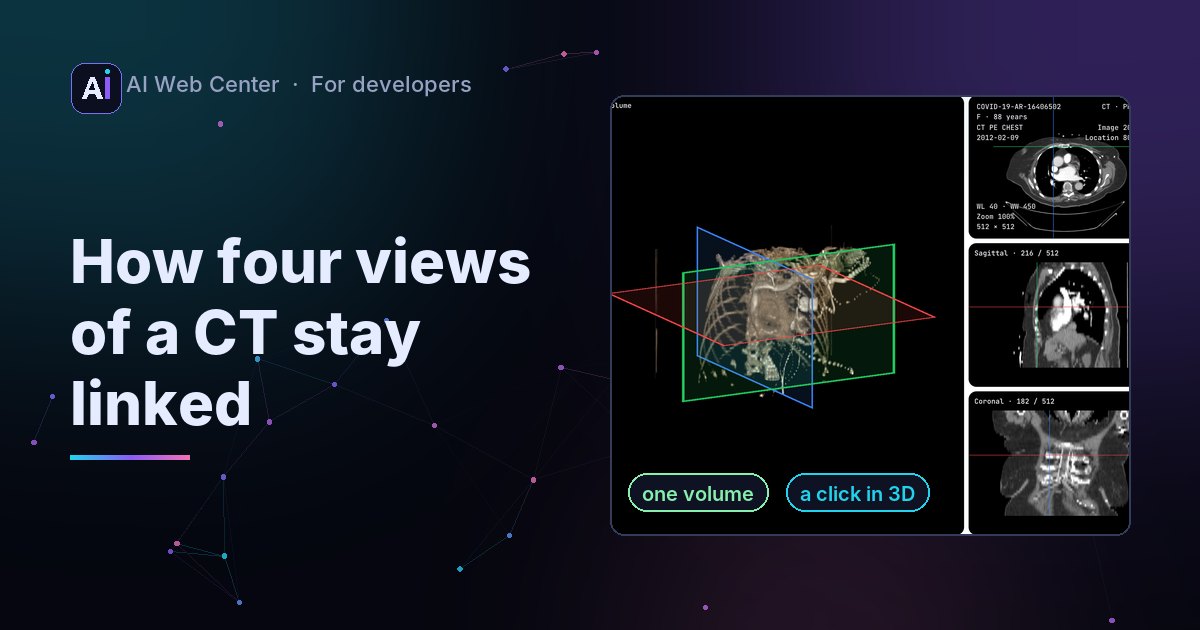
- 3D for CT and MRI series: volume, MIP and three crossing planes.
- Every tag of the file, searchable.
Tags beside the image, or on a second screen
Under the viewer is a table of every DICOM tag. Where space is tight, data-tags="popup" puts it behind a Tags button instead: a window beside the image that you drag by its title bar and resize from the corner, while the image stays in use next to it. Own window moves the tags to a browser window of their own, for a second screen. It follows the viewer to the next study, is cleared by Close and delete, and closes when the viewer’s page does. The tags go from the viewer to that window in the browser; nothing is uploaded.
Studies from your PACS
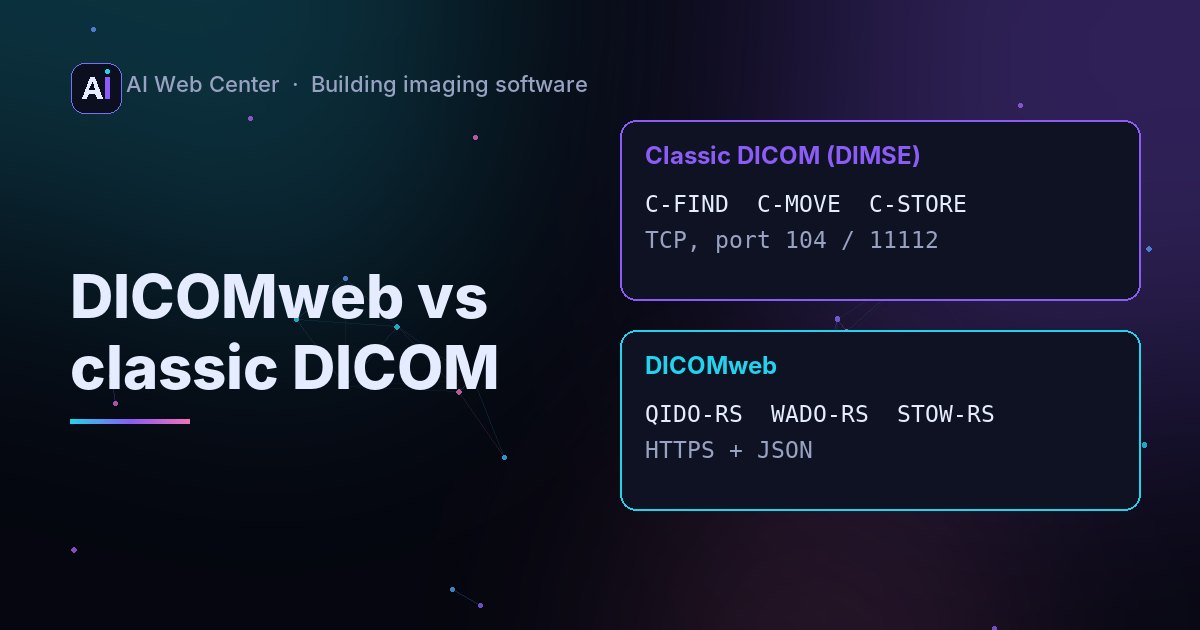
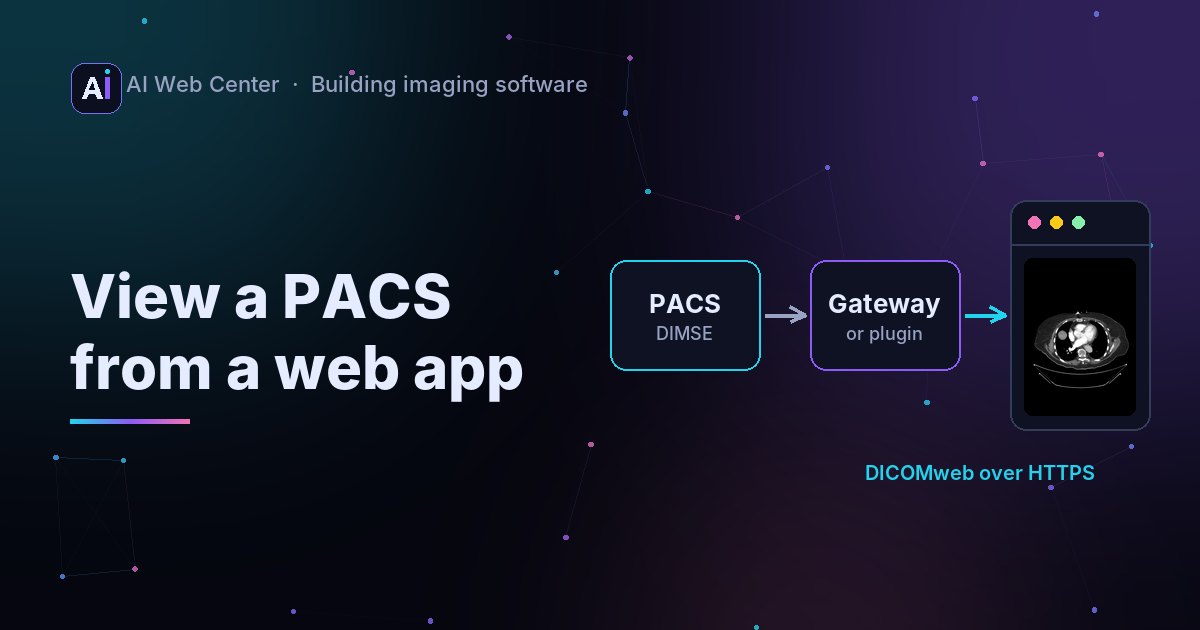
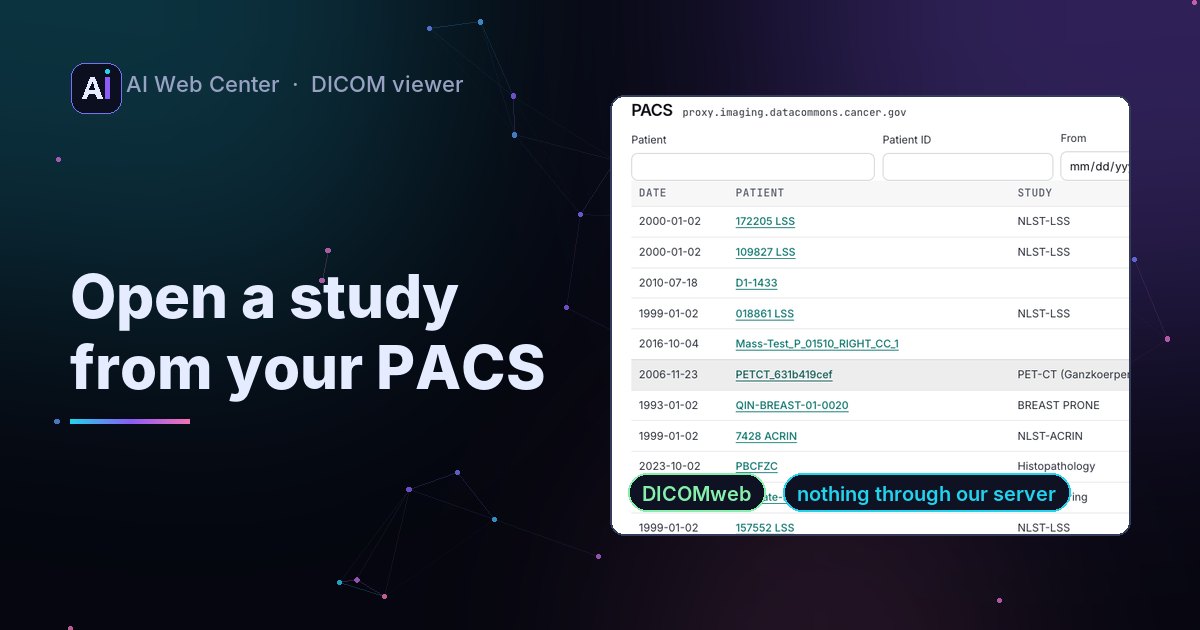
The viewer has Open from a PACS, the same as on our own page: staff enter their archive’s DICOMweb address, sign in with a password or single sign-on (Keycloak), search and open a series. The browser talks to the PACS directly. The PACS has to allow https://aiwebcenter.com, the viewer’s own address in the frame. Setup for IT: Open a PACS study in your browser. A site that doesn’t want it adds data-pacs="off".
Only a viewer
Our own page has sample studies to try. The embedded one doesn’t. No other scans, no suggestions: what it shows is up to your site and the people using it.
Above it is a small strip with our name and a few rolling links to our site. Right above the image, always in view with it, is one line: Not a medical device. That link opens the rest: not for diagnosis, provided as is, no medical advice, and the website that shows a study is responsible for it.
Match your site
data-theme="dark" or "light", and data-accent with your own color for the selected buttons. data-height sets its size; the default is 720 pixels.
What we see
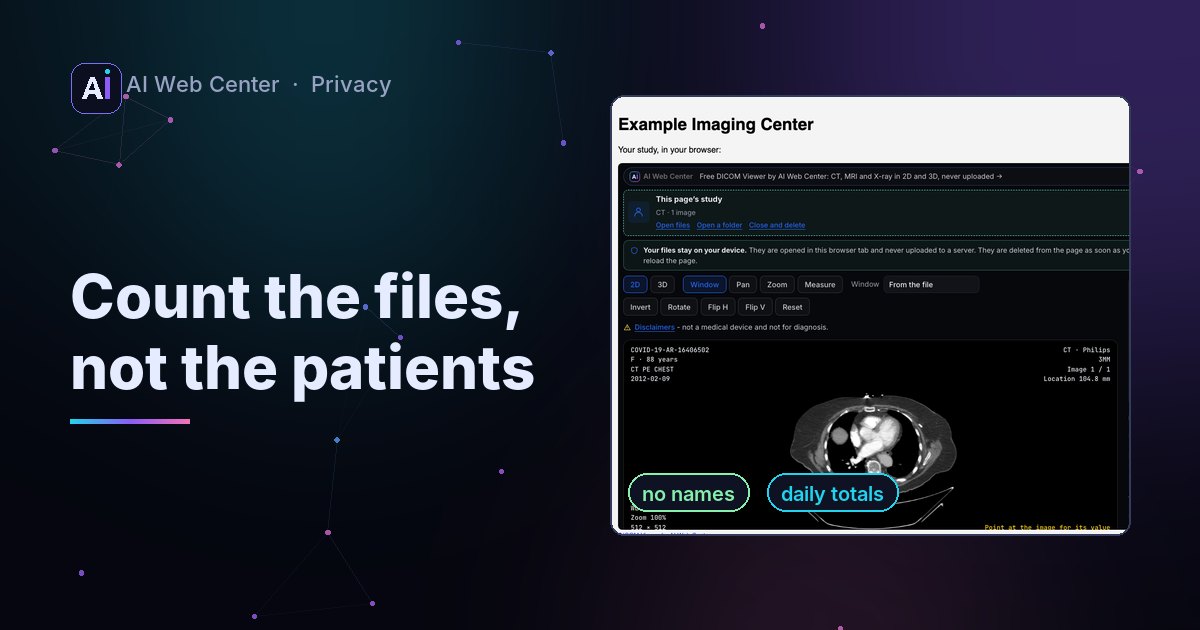
Not the study, not a file name, nothing from the tags. The viewer counts that a study was opened, how many files it had, its modality and compression, and your site’s name, so we know it’s used and which file types to support next. More on that in Count what a medical image viewer opens, without tracking patients.
Set it up
Every option, recipes and troubleshooting are in the guide: the DICOM viewer on your website. Questions: support@aiwebcenter.com.
If you need more than a viewer, such as a patient portal, a link to your PACS or a referrer site, that’s what we build.
Frequently asked questions
Is it free?
Yes, for any website. The viewer shows a small AI Web Center strip with links to our site, a line above the image that says it's not a medical device, and a credit link above it.
Is the study uploaded anywhere?
No. Your page reads it and hands it to the viewer in the visitor's browser, where it's read. Files visitors drop on it are read the same way. Neither reaches your server or ours.
Does it show your sample scans?
No. The embedded viewer is only a viewer. It shows the study your page names, the files your visitors open, or a study they open from their own PACS. Nothing else.
Which files open?
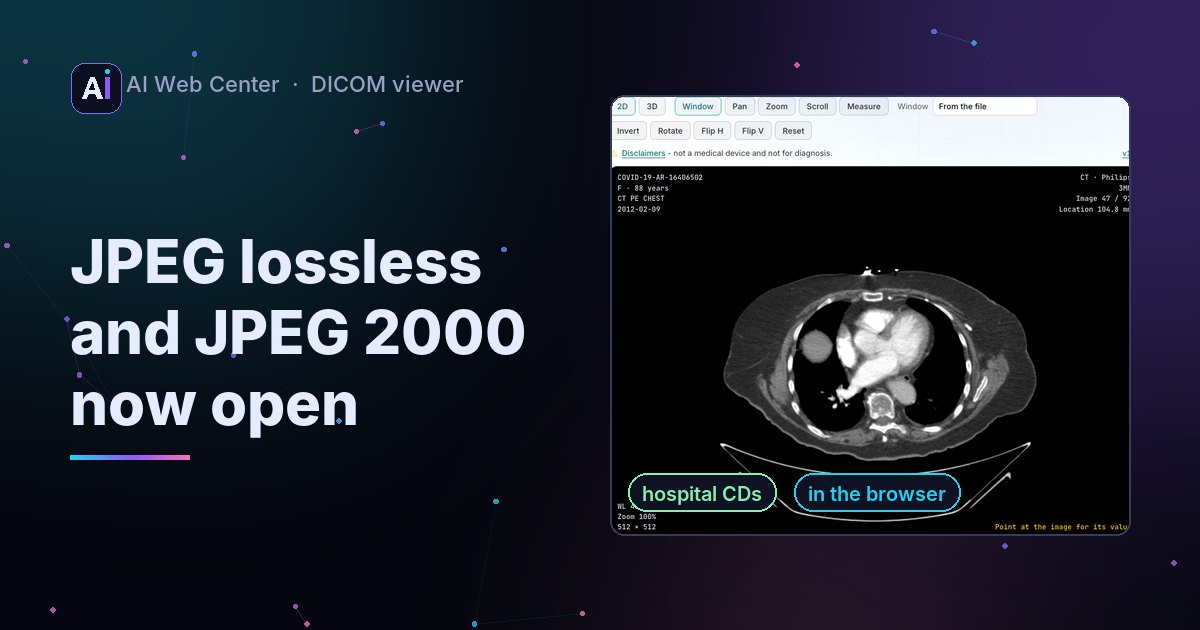
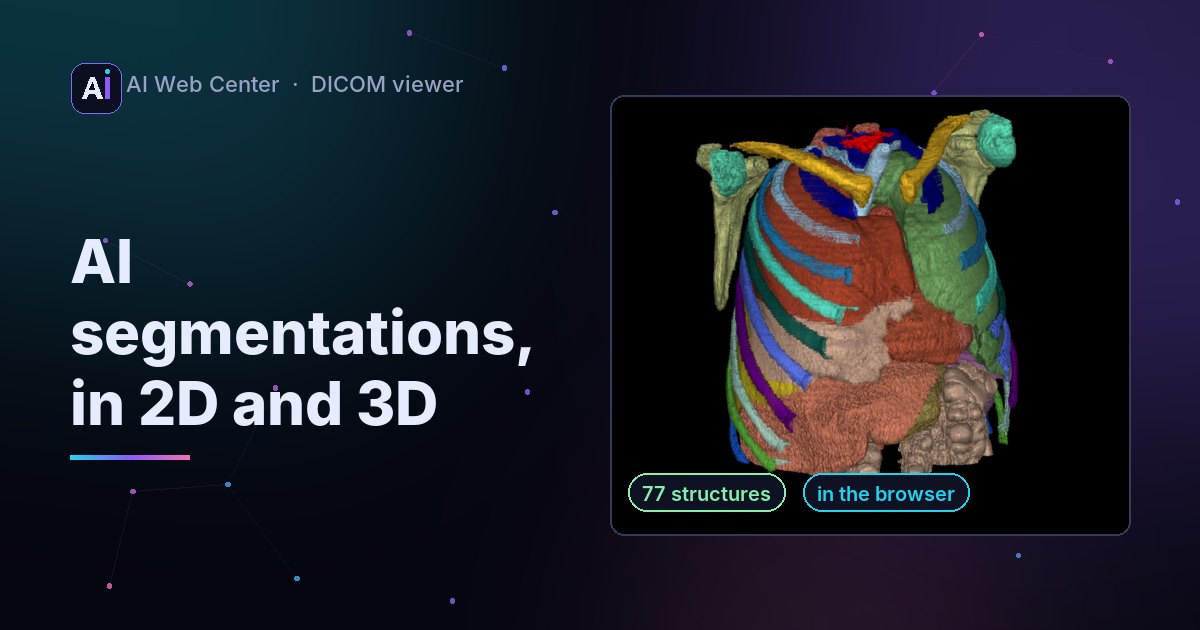
Uncompressed DICOM, deflated, RLE lossless, baseline and 12-bit JPEG, JPEG lossless, JPEG-LS and JPEG 2000, gray, color or palette color, single images and multi-frame clips: one file, a whole series or a ZIP. Segmentations and RT structure sets show over their images; reports and PDFs open as documents.
Can it be used for diagnosis?
No. It's a technology demonstration, not a medical device, and a line above the image always says so.