// blog
Open a Study From Your PACS in a Web Browser, With Nothing to Install
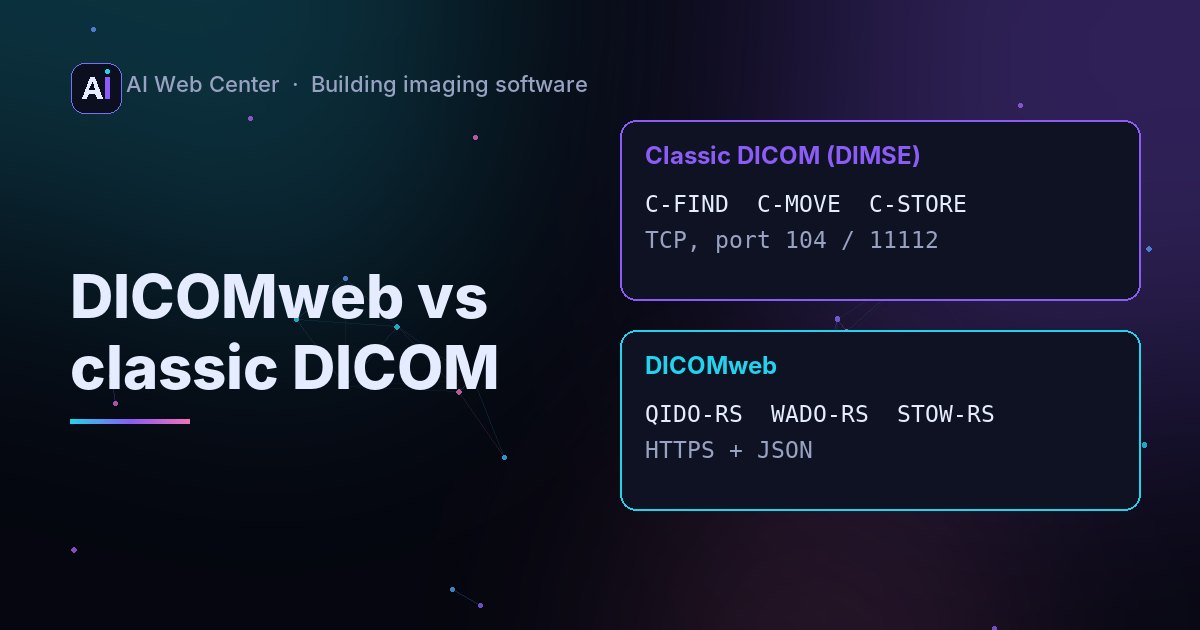
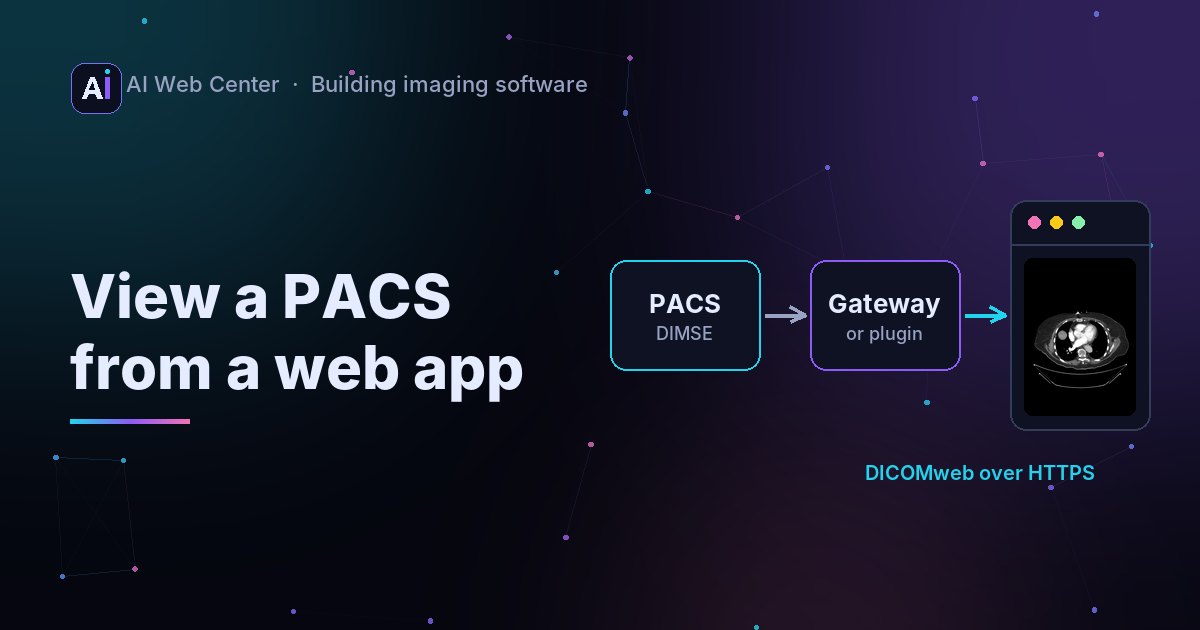
If your PACS offers DICOMweb, our free DICOM viewer can open its studies in any browser: enter the archive’s DICOMweb address, sign in with a password or single sign-on (Keycloak, as a secured dcm4chee uses), search by patient, ID, date or modality, and pick a series. The browser asks the PACS directly, so studies and passwords never pass through our server. We tested it with Orthanc and dcm4chee. Orthanc needs a CORS setting for the viewer’s website; dcm4chee allows it already. A PACS that speaks only classic DICOM networking needs a DICOMweb gateway in front of it.
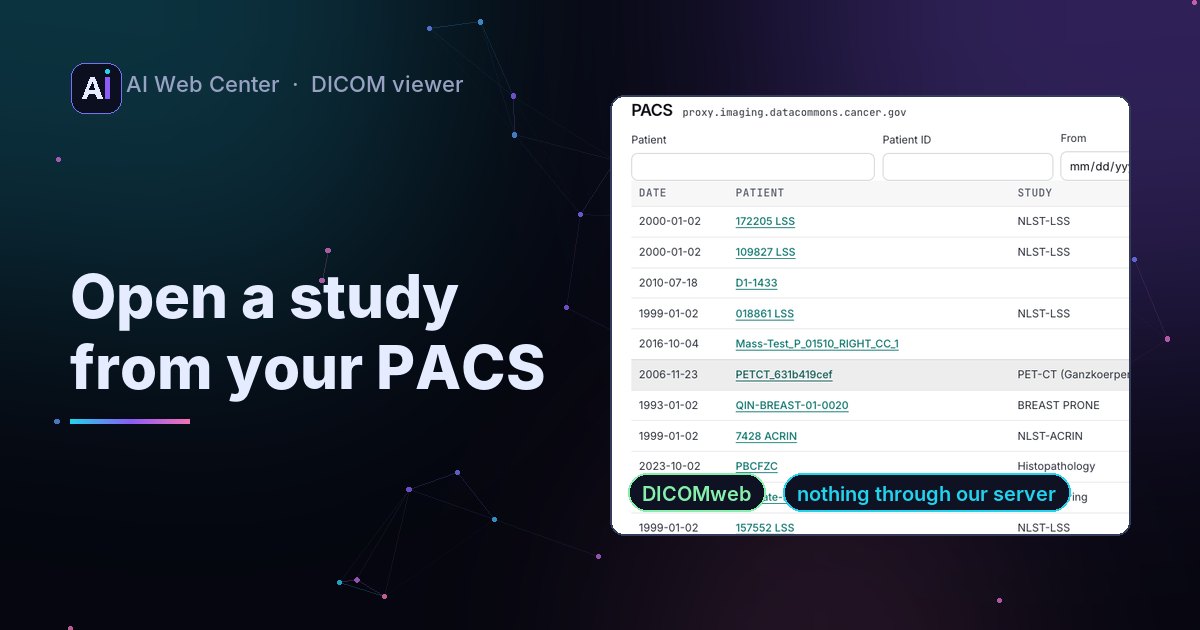
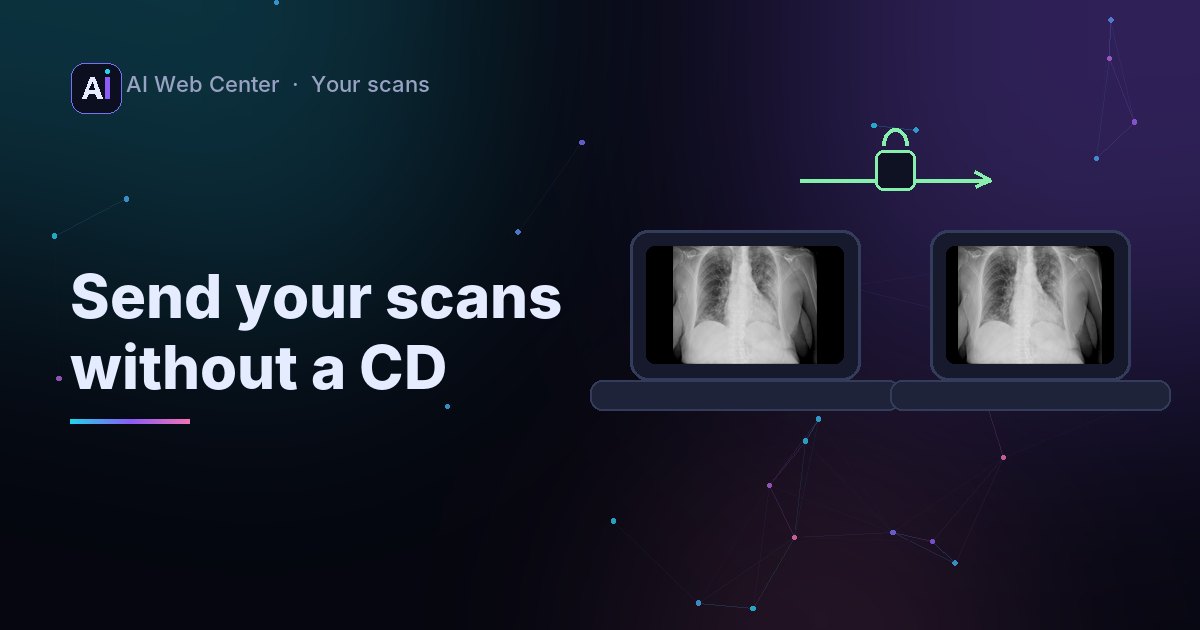
Looking at a study from the archive usually means sitting at a workstation, opening a VPN or starting the vendor’s viewer. For a quick look at a series, that’s a lot.
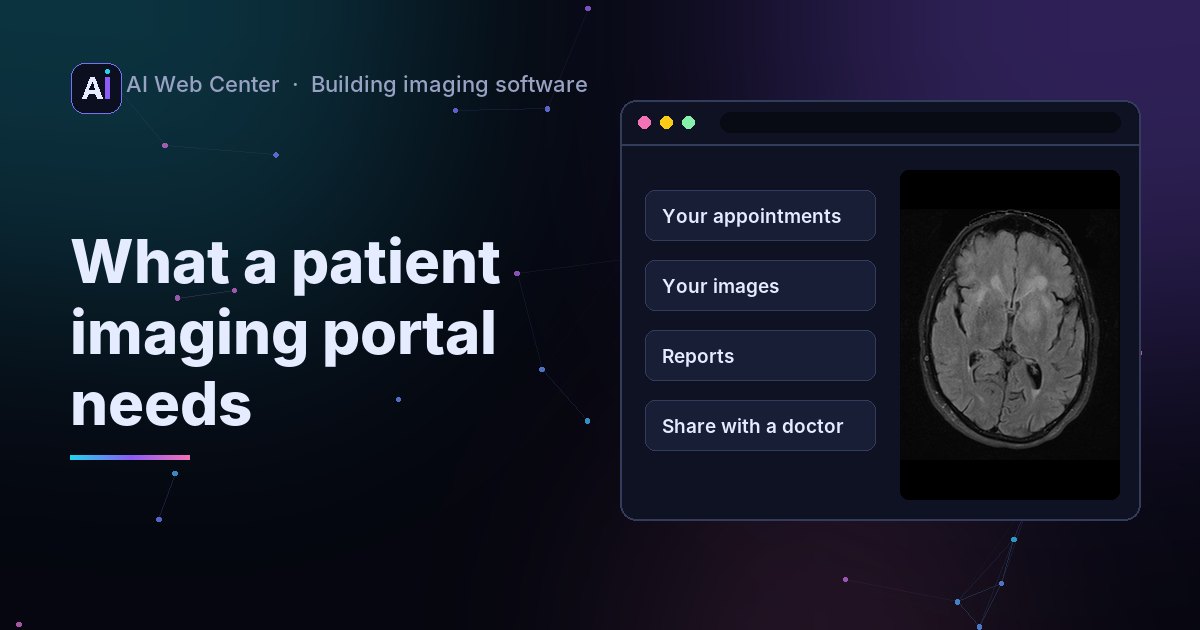
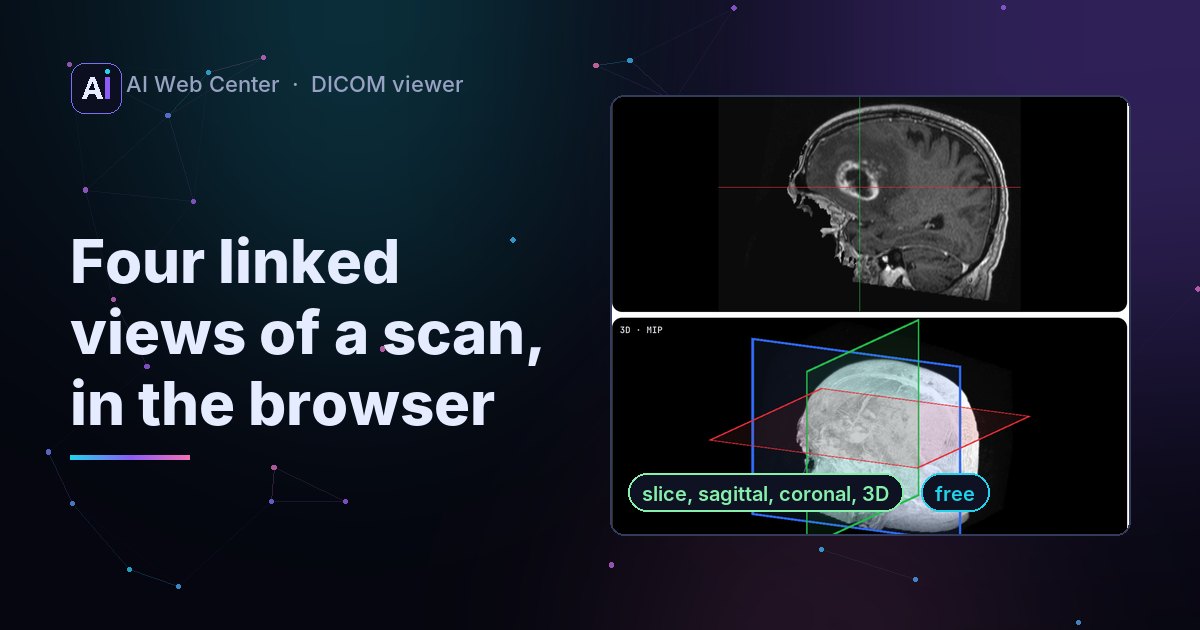
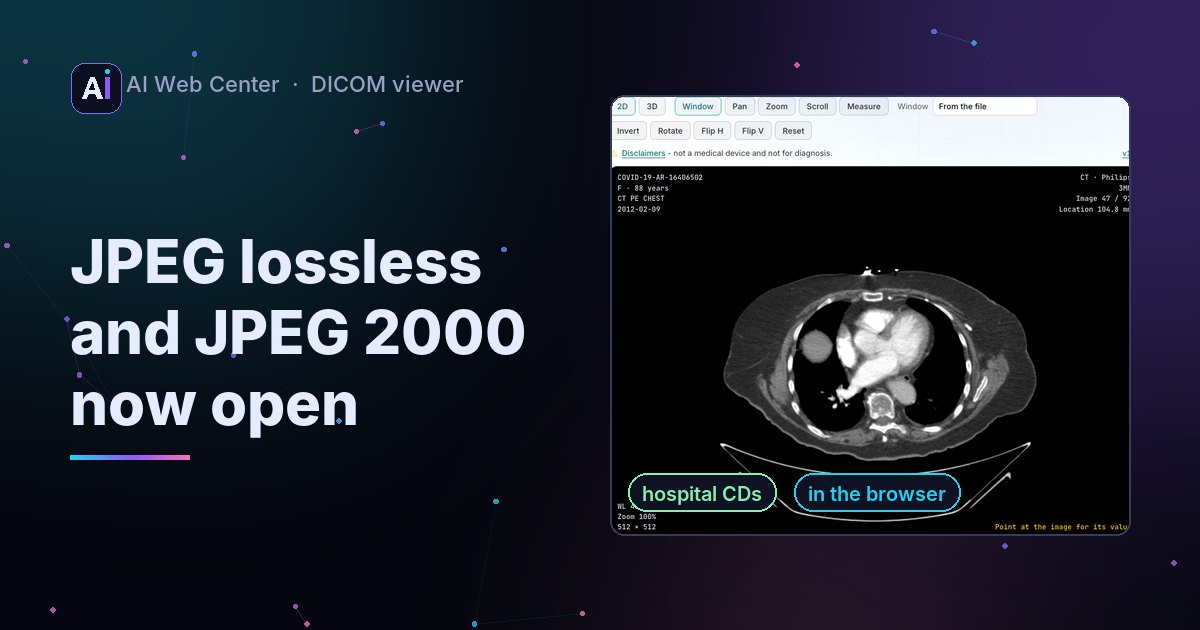
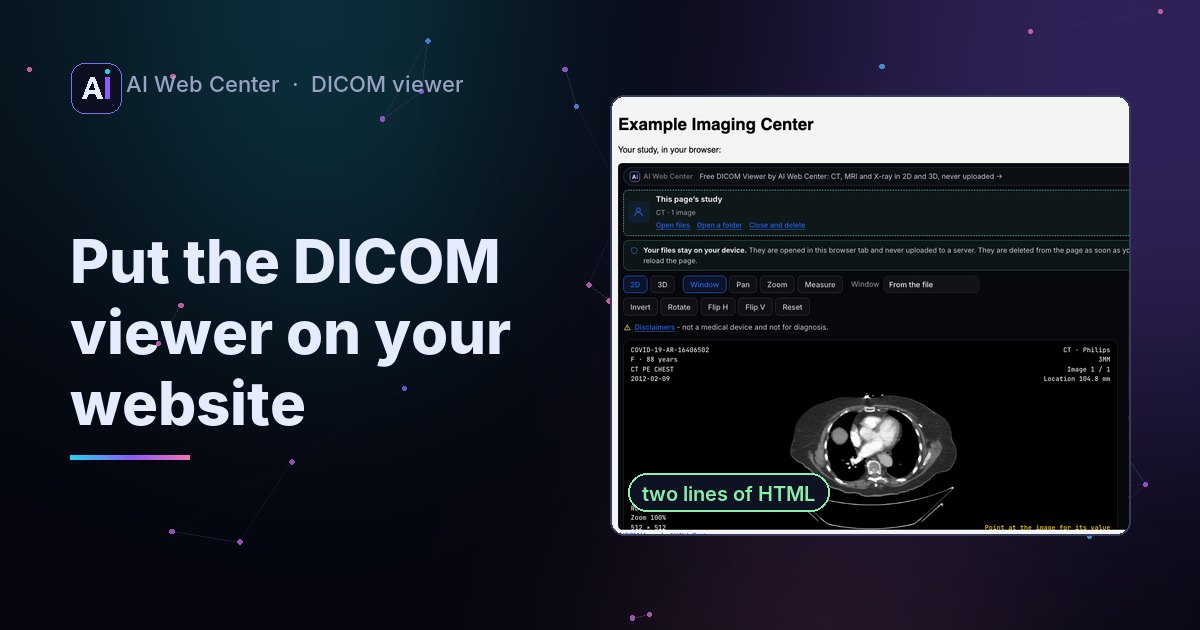
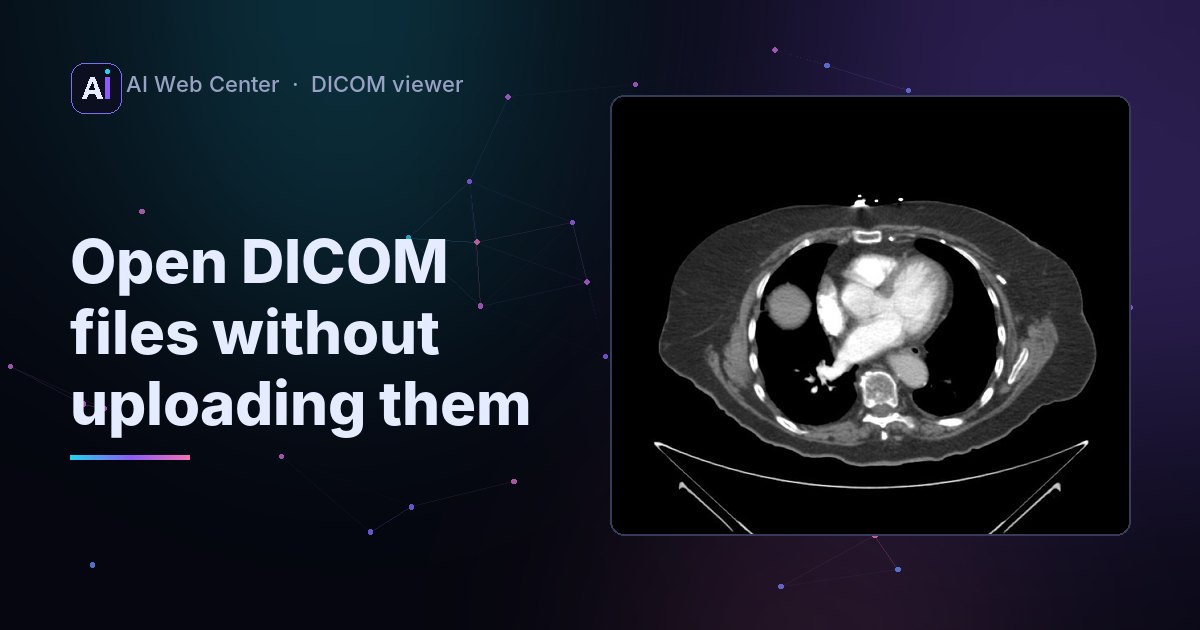
Our free DICOM viewer can now open studies from a PACS in any browser.
Four steps
- Open the DICOM viewer and click Open from a PACS.
- Enter the PACS’s DICOMweb address, and sign in: a user name and password, or single sign-on if the archive uses Keycloak (a secured dcm4chee does) or another OpenID provider.
- Search by patient, patient ID, accession number, date, modality, study description or referring physician, and click a study. Results come 100 at a time, with First, Previous, Next and Last.
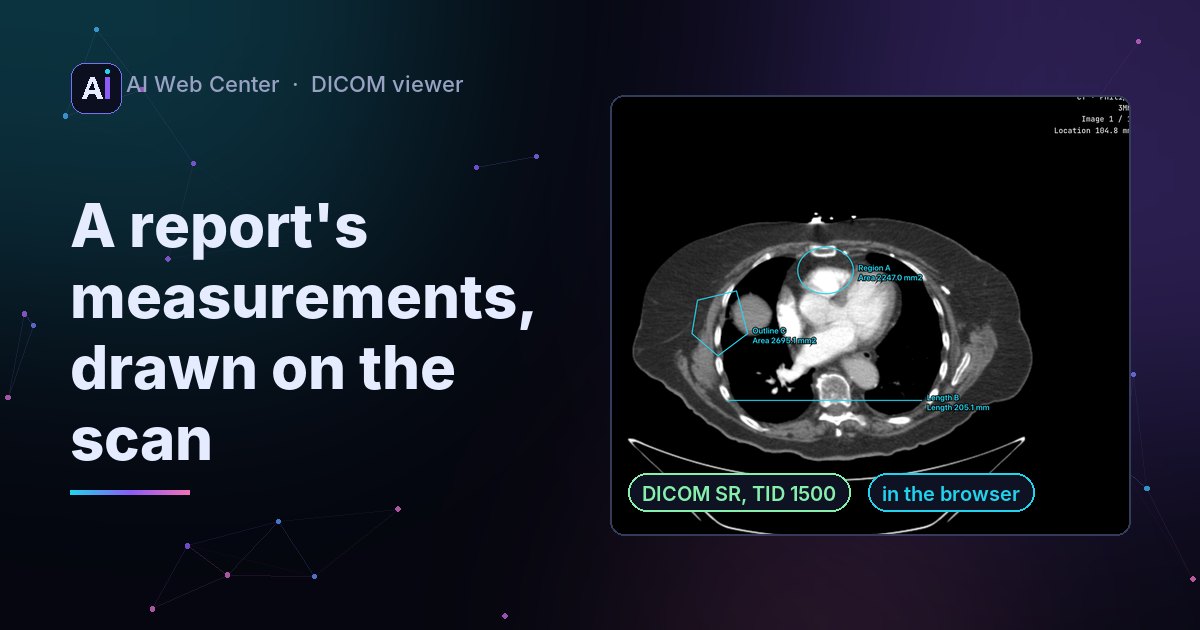
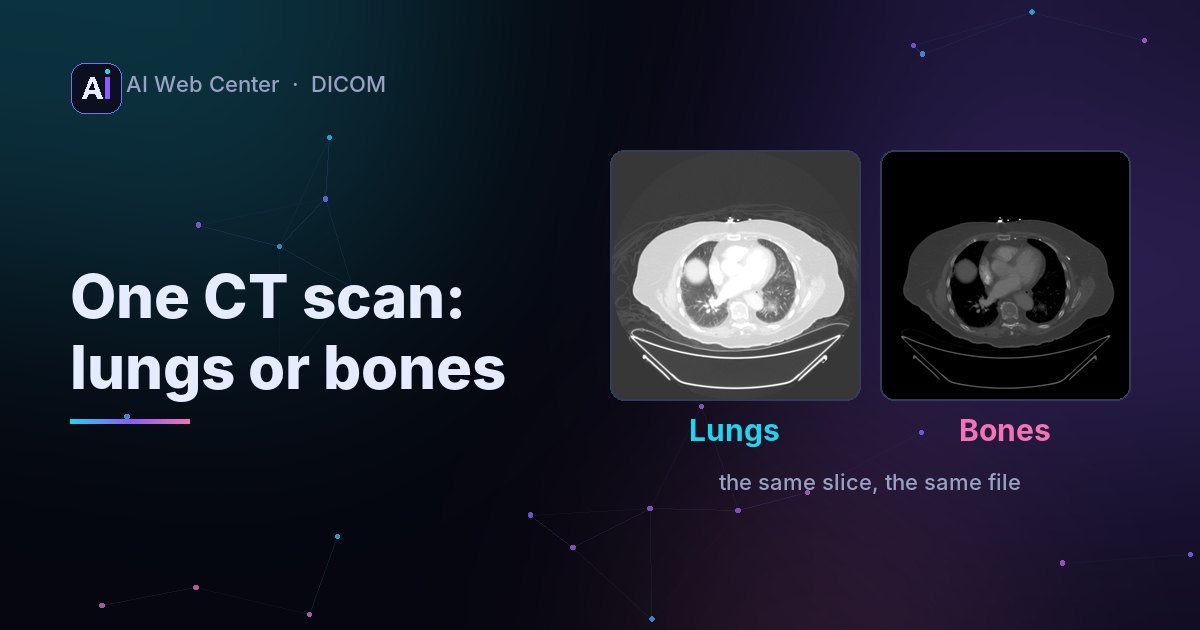
- Click a series. It downloads, with a Cancel button, and opens like your own files: scroll, window, measure, 3D.
No PACS at hand? Try a public PACS connects to the NCI Imaging Data Commons, a public archive of research scans.
Your browser, your PACS, nothing in between
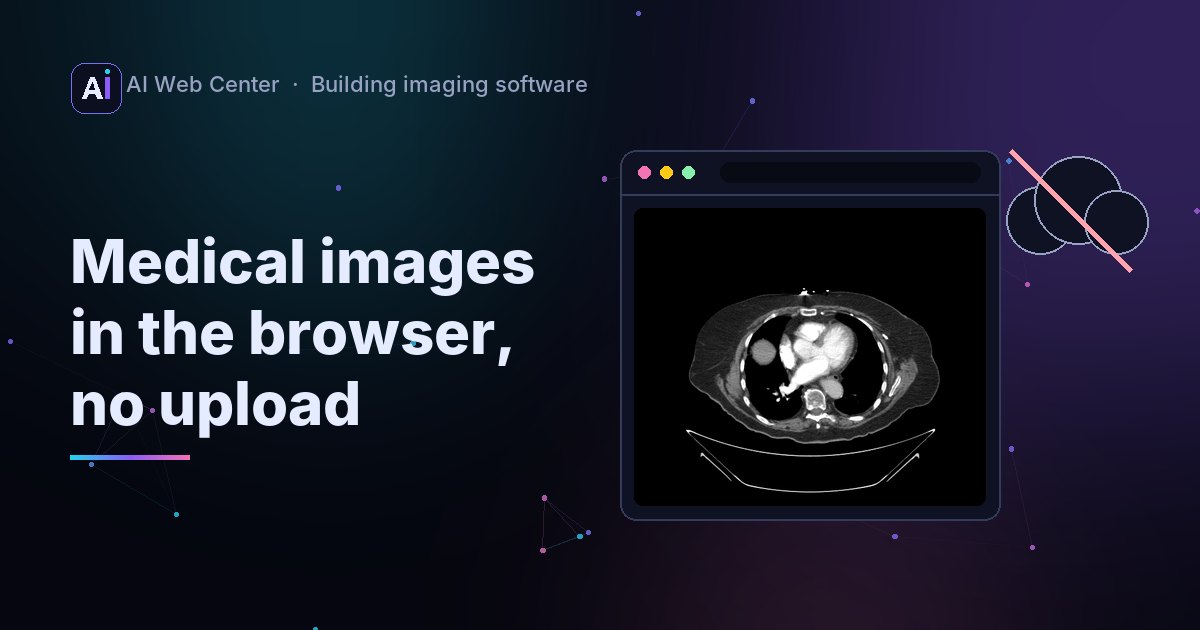
The viewer runs in your browser, and your browser asks the PACS itself, over DICOMweb (QIDO-RS to search, WADO-RS to fetch). Nothing passes through our server: not the studies, not the search, not the password. The password stays in that browser tab and is gone when you disconnect or close it.
Because the browser does the asking, a PACS on the clinic’s own network works too, without opening it to the internet.
The same button can sit on your own website: the embedded viewer has it too, single sign-on included.
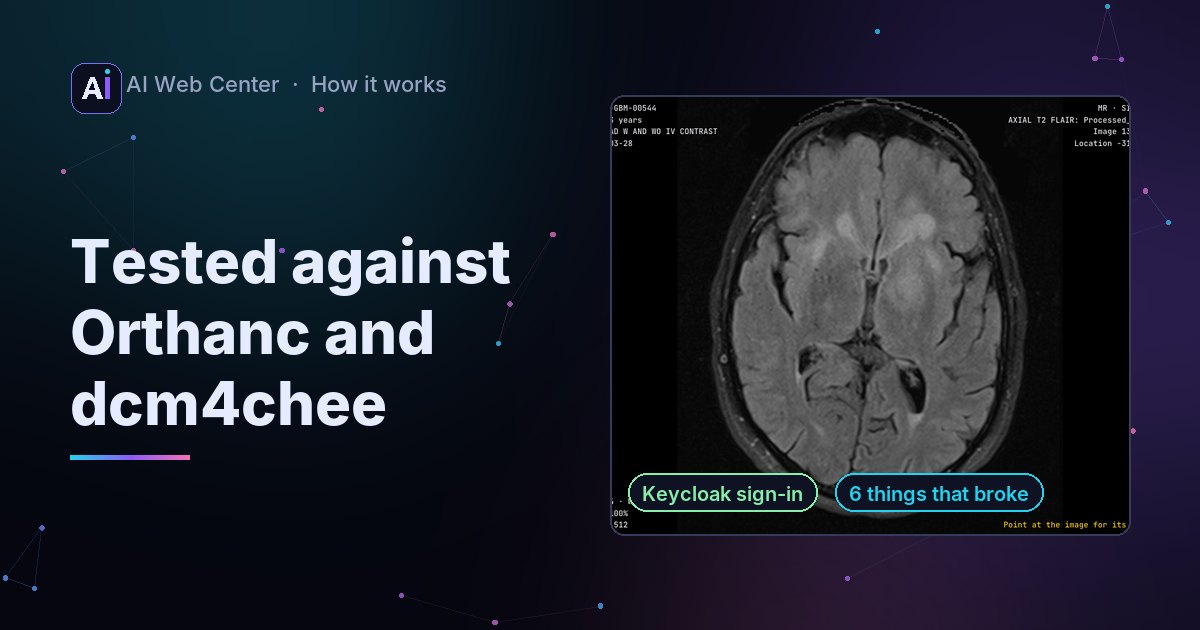
Tested with Orthanc and dcm4chee
Before writing “it works with your PACS”, we ran both archives and opened studies from them in the live viewer:
| Archive | Sign-in | Opened |
|---|---|---|
| Orthanc 26.11, DICOMweb plugin | user name and password | a 92-image chest CT, JPEG lossless |
| dcm4chee 5.35 | none | a 25-image brain MRI, JPEG 2000 |
| dcm4chee 5.35, secured | Keycloak single sign-on | the same CT, with the token renewed while working |
For the IT person
The PACS has to do two things:
- Offer DICOMweb over https. A PACS that speaks only classic DICOM networking (C-FIND, C-MOVE) needs a DICOMweb gateway in front of it.
- Allow the viewer’s website (CORS): the origin
https://aiwebcenter.com, theGETmethod, and theAcceptandAuthorizationheaders.
What that means for the two most common open-source archives:
-
dcm4chee: the address is
https://your-host:8443/dcm4chee-arc/aets/DCM4CHEE/rs(your AE title in place of DCM4CHEE). It allows other websites already, so nothing to set. If it’s secured with Keycloak, add the viewer as a client in the realm, once:- Client ID: for example
aiwebcenter-viewer, client authentication off (a public client), standard flow only. - Valid redirect URI:
https://aiwebcenter.com/tools/dicom-viewer/. Web origins:https://aiwebcenter.com. - PKCE method: S256.
- Users need the realm role that opens the archive (
userin dcm4chee’s realm).
In the viewer, the sign-in server is
https://your-host:8843/realms/dcm4che. - Client ID: for example
-
Orthanc: the DICOMweb plugin serves it under
/dicom-web/. Orthanc has no CORS setting of its own, so a reverse proxy in front of it adds one. With nginx, for example:
location /dicom-web/ {
    if ($request_method = OPTIONS) {
        add_header Access-Control-Allow-Origin "https://aiwebcenter.com";
        add_header Access-Control-Allow-Methods "GET, OPTIONS";
        add_header Access-Control-Allow-Headers "Accept, Authorization";
        add_header Access-Control-Max-Age 3600;
        return 204;
    }
    add_header Access-Control-Allow-Origin "https://aiwebcenter.com" always;
    proxy_pass http://127.0.0.1:8042/dicom-web/;
}
The proxy answers the browser’s pre-check (OPTIONS) itself: that request comes without the password, and Orthanc would refuse it. Don’t add these lines in front of dcm4chee: it sends its own, and two Access-Control-Allow-Origin headers make the browser refuse the answer.
Keep the PACS’s own login on, and allow only the origins you use.
Want imaging like this inside your own portal, with your sign-in and your access rules? Tell me about it.
Frequently asked questions
Does our PACS data go to AI Web Center?
No. Your browser asks the PACS directly. The images, the search results and the password never reach our server. We only count that a series was opened from a PACS, with its modality and compression, never which PACS or which patient.
Which PACS work?
Any that offers DICOMweb search and retrieval (QIDO-RS and WADO-RS). We tested Orthanc 26.11 with its DICOMweb plugin, and dcm4chee 5.35, both unsecured and secured with Keycloak sign-in, on November 15, 2026. The Google Cloud and Microsoft Azure DICOM services speak the same standard.
Does the PACS have to be on the internet?
No. The browser runs on your computer, so a PACS on the clinic's own network works, as long as that computer can reach it over https with a certificate the browser trusts. The first time, Chrome (since version 142) asks whether this website may reach your local network: click Allow. Your IT can also allow it for everyone with a Chrome policy.
Our PACS uses single sign-on. Does that work?
Yes, with Keycloak or another OpenID Connect provider. Your IT registers the viewer once as a public client, and you sign in in a small window, as you do in the archive's own pages. The viewer keeps the token in that browser tab only and renews it while you work.
It says the PACS did not answer. Why?
Usually one of three things: the address is wrong (it often ends in /dicom-web, /dicomweb or /rs), the certificate isn't trusted, or the PACS doesn't allow this website yet (CORS). The section for the IT person below shows the setting.
Is it a diagnostic viewer?
No. It's a technology demonstration, not a medical device, and a line above the image always says so.
Sources
- dcm4chee-arc-light wiki: Run secured archive services on a single host
- Chrome for Developers: Local Network Access
- RFC 7636: Proof Key for Code Exchange (PKCE)
- DICOMweb (DICOM PS3.18: Web Services)
- Orthanc Book: the DICOMweb plugin
- Google Cloud Healthcare API: using DICOMweb
- Microsoft Azure: DICOMweb standard APIs with the DICOM service
- NCI Imaging Data Commons