// blog
How to View DICOM Files on an iPhone or iPad
Put the DICOM files in the Files app on your iPhone or iPad: download them from your patient portal, or copy them from a computer with AirDrop or iCloud Drive. Then open a DICOM viewer that runs in Safari, tap Open files, and select the images, or the ZIP they came in. They’re read on the phone and never uploaded.
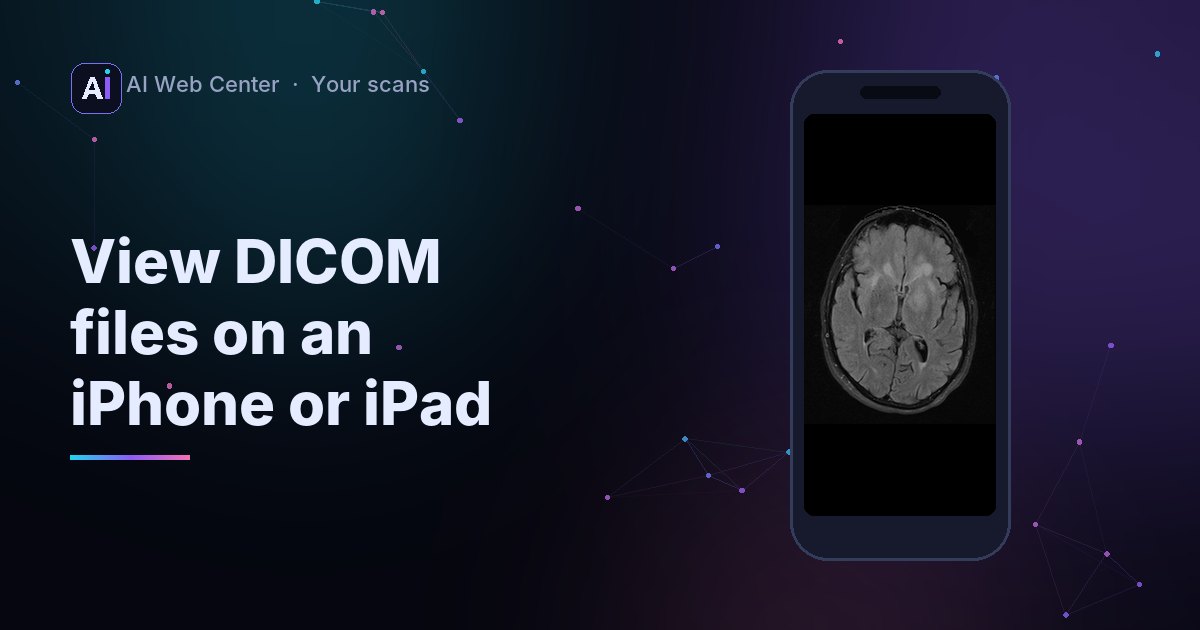
An iPhone has no CD drive and doesn’t know what a DICOM file is. But it has a good browser and a Files app, and that’s all you need to look through your scans.
Step 1: get the files into the Files app
Pick whichever fits how you got your scans:
- From a patient portal: download the images in Safari. They usually arrive as a ZIP in the Downloads folder in Files.
- From a CD: copy the CD to a computer first, then send the folder to your phone with AirDrop (from a Mac) or put it in iCloud Drive.
- From an email or message: save the attachment to Files.
Step 2: open them in the browser
- Open our DICOM viewer in Safari.
- Tap Open files and browse to the files in Files. Pick the ZIP if they came as one: it’s unzipped in the browser. Otherwise select the images (tap Select, then select them all).
- The images open as a series.
Using another viewer that doesn’t take ZIPs? In the Files app, tap the ZIP, and Files creates a folder with the contents next to it.
Drag with one finger to use the selected tool: Window changes the contrast, Scroll moves through the slices, Pan and Zoom move the picture. The Play button runs moving clips, like an ultrasound loop.
The files are read on your phone and never uploaded; Close and delete clears them from the page.
Tips for phones
- One series at a time. A full study can be hundreds of images; open the series you want.
- Turn the phone sideways for a bigger image.
- An iPad is better for long sessions: more room, more memory.
- Files a viewer can’t decode (JPEG lossless or JPEG-LS) show their tags with a note; why a DICOM file won’t open has the details.
What the phone can’t tell you
You can look, zoom and measure. What the images show is in the radiologist’s report. A browser viewer is for looking, not for diagnosis.
Key takeaways
- No CD drive needed: get the files into the Files app.
- A ZIP opens directly in the viewer (or tap it in Files to unzip it).
- Open the images in a browser DICOM viewer; no app required.
- Open one series at a time on a phone.
Open the DICOM viewer on your phone →
Run a practice or an imaging center? We’re glad to share what we know. When you want a portal that makes all of this easy for your patients, we’ll build it for you, and because we work with AI-assisted development, it costs far less than you might expect. Let’s talk.
Frequently asked questions
Can I put a scan CD in my iPhone?
No; the CD's files need to come through a computer first. Copy the CD to a computer, then send the folder to the phone with AirDrop or iCloud Drive. Or ask for a download link, which many patient portals offer.
Do I need an app?
No. A DICOM viewer that runs in Safari works. Apps exist too, but you don't need one to look through your images.
Why does a big MRI open slowly on my phone?
Phones have less memory than computers, and a study of several hundred images takes a while to read. Open one series at a time rather than the whole study.