// blog
Replacing an Old Desktop Program: A Checklist Before You Start
Before replacing an old desktop program, write its rules down in plain words and have the people who use it check them, find where its data lives and how to read it, list any hardware attached to it, pick real documents to test the new version against, and decide in advance which odd behaviors to fix and which to keep. Most of the time in a conversion goes to the rules and the decisions, not to writing the new screens.
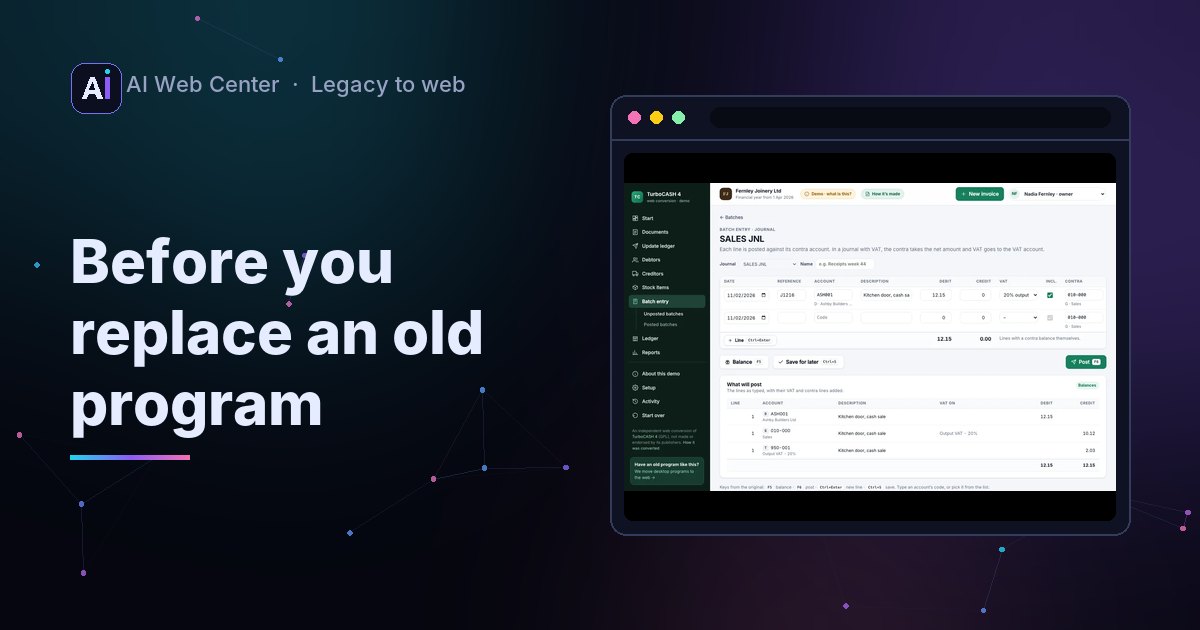
If your business runs on a Windows program written years ago, there’s a good chance nobody alive knows everything it does. That’s fine. Here’s what to find out before a conversion starts. It comes from moving Virtual Salesman 3, a 2006 Delphi program for quotes, orders, invoices and stock, to the web.
1. The rules, in plain words
The rules of an old program are rarely in one place. In Virtual Salesman they were spread over the forms’ buttons, a product picker and the main window’s Save handler. Write each one as a sentence: “an order needs a deposit of at least 25%”, “an invoice can’t be changed once saved”.
Then have the people who use the program every day read the list. If someone says “that’s not how we work”, you’ve saved a rewrite.
2. The data
- Where does it live: a database (Access, SQL Server, Paradox), a folder of files, a server in the back room?
- Can you read it without the program? Virtual Salesman’s files were scrambled, and the code that read them wasn’t in the source. We recovered the format from the program itself, which takes longer, but it can be done.
- How much is there, and how far back does it need to go?
3. What’s plugged in
Barcode scanners, scales, label and receipt printers, card readers, cash drawers. A browser can’t talk to all of them directly; some need a small helper program on the PC. Find them before the quote, not after.
4. How people work
Long-time users work by habit: the tab order, the shortcuts, where the total is. Keep what they rely on. The web version of Virtual Salesman kept the same five sections in the same order and the same keyboard shortcuts.
5. Documents to test with
Pick real documents the owner knows: last month’s invoices, an order with a deposit, something odd. The new version must give the same totals. In our case, the author’s four sample documents match the old program to the bit.
6. What to fix, and what to keep
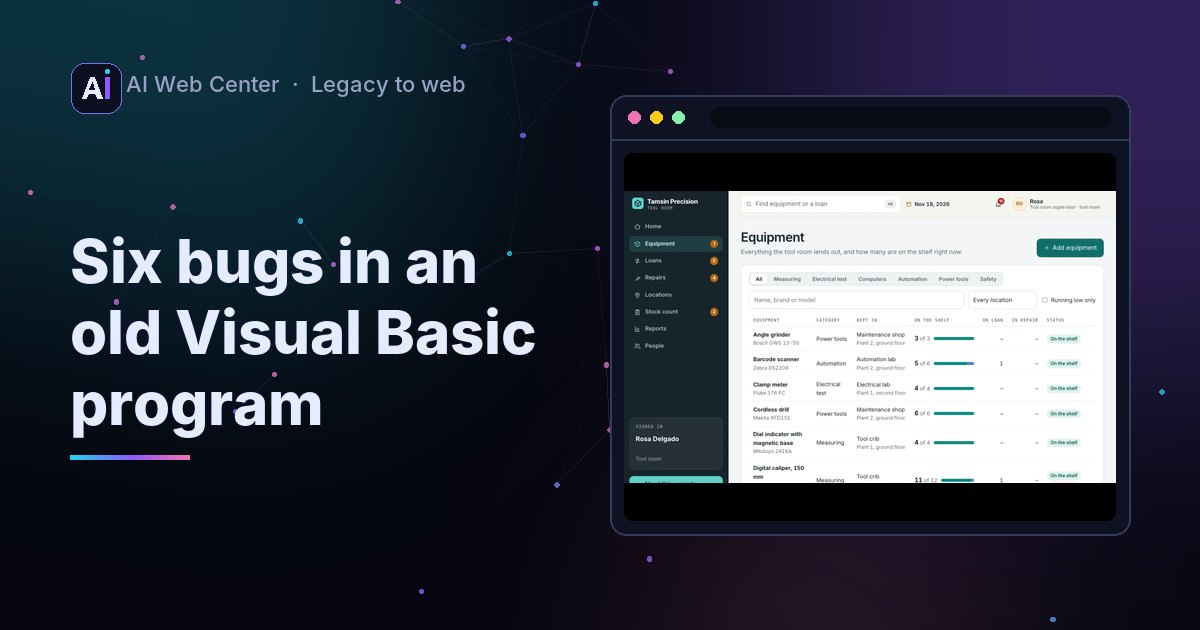
You will find bugs. We found one that could overwrite a saved invoice, and card numbers kept in plain files. Fix what loses or exposes data. Keep what people rely on, even if it looks odd, until the owner decides. Write every decision down.
7. The switch
Run both side by side for a while, import the data one last time, and keep the old program read-only for a few months.
The case study shows each of these on a real program, and you can try the result. If you’d like help with yours, tell us what you’re running.