// blog
Trace the Power-Up Sequence on a MacBook Board, Rail by Rail
On Apple boards, a rail’s name says when it should be up: G3H rails are always on, S5 and SUS rails come up in standby, S3 rails keep the memory alive in sleep and S0 rails are only there when the machine runs. A free browser board viewer sorts the rails by those names into stages and draws each one on the board with its known-good readings. Where OpenBoardData has notes for the board, you can step through its real power sequence line by line.

When a board won’t start, the first job is finding where the power-up sequence stops. Which rails are there, which are missing, and which one should have come next. On Apple boards you get a head start, because the name of each power rail says when it should be up.
What the names tell you
Apple’s rails start with PP and end with a power state:
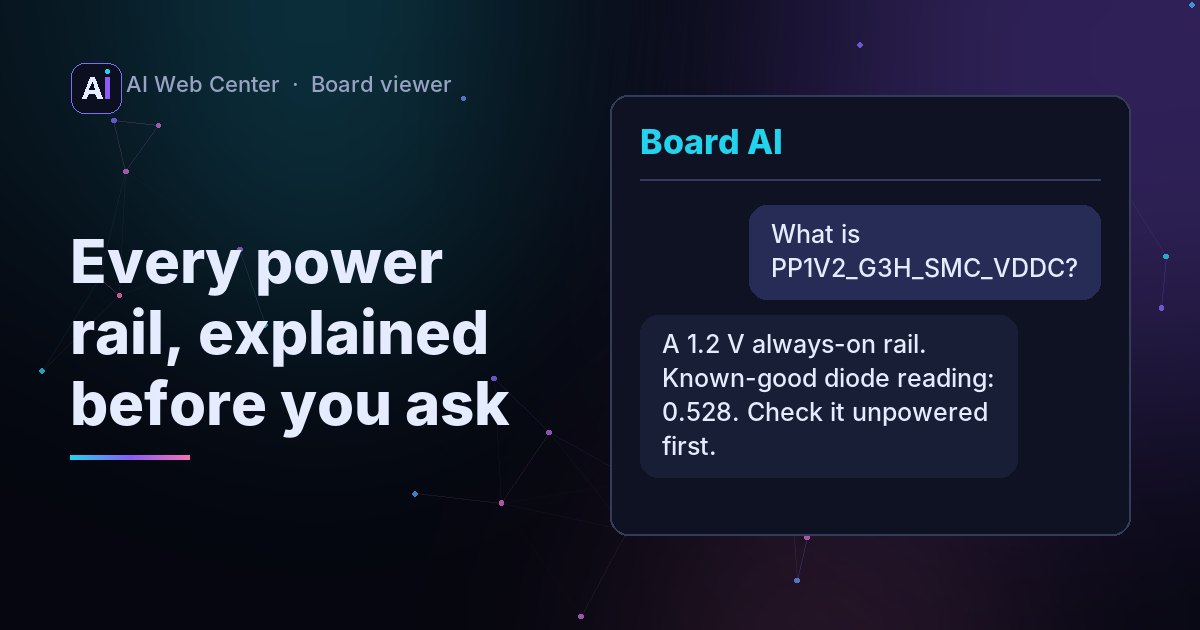
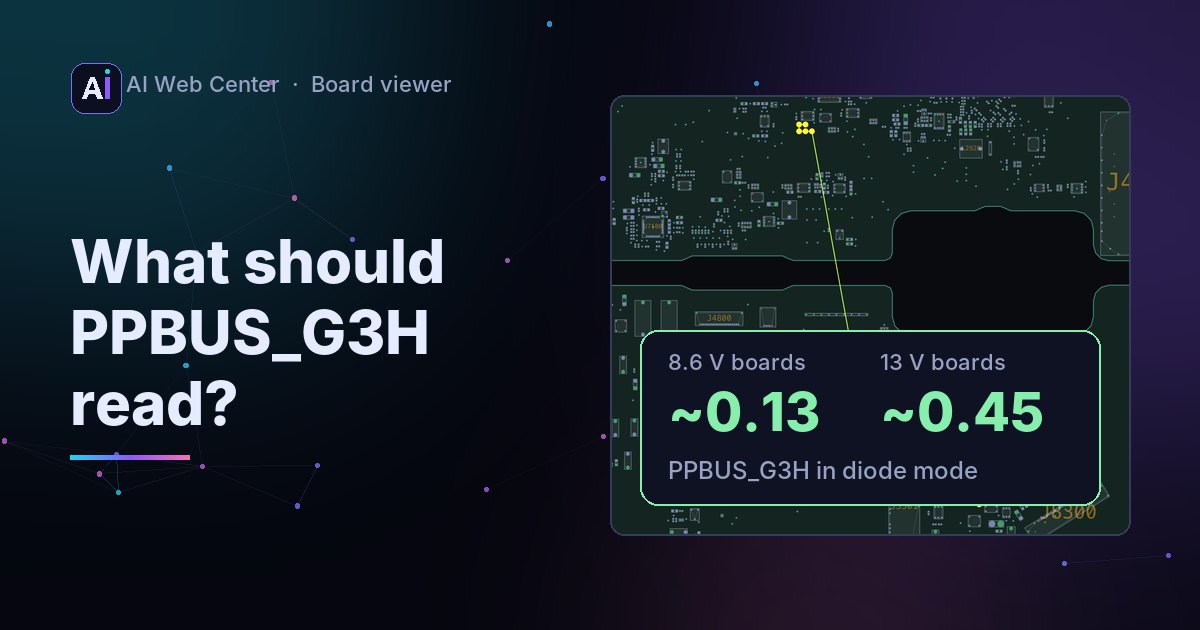
- G3H, as in PPBUS_G3H: always on. It should be there as soon as a charger or battery is connected.
- S5 and SUS, as in PP3V3_S5: standby. These come up once the always-on rails are good, before the power button.
- S4: these follow as the board starts to wake.
- S3: memory. These stay on in sleep, keeping the memory alive.
- S0, as in PP1V05_S0: running. These are only there when the machine is fully on.
So a dead board with PPBUS_G3H present but nothing in S5 points you at what should turn the standby rails on. That’s a guide, not a rule: names don’t tell the whole story, not every rail fits a stage, and the schematic has the final word.
In the viewer
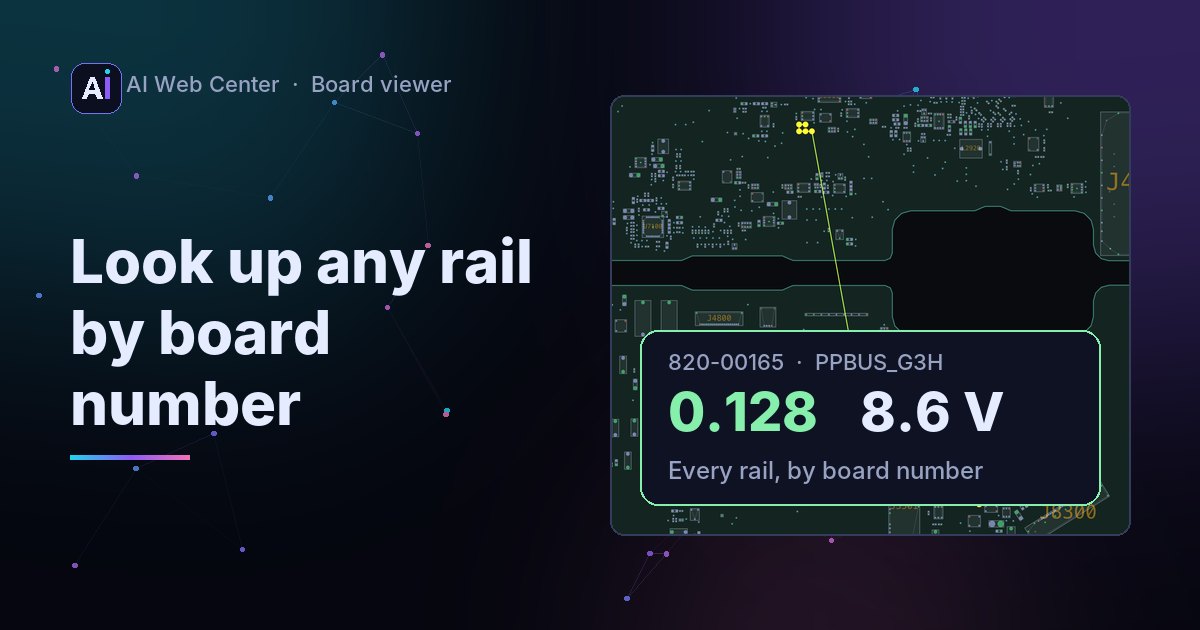
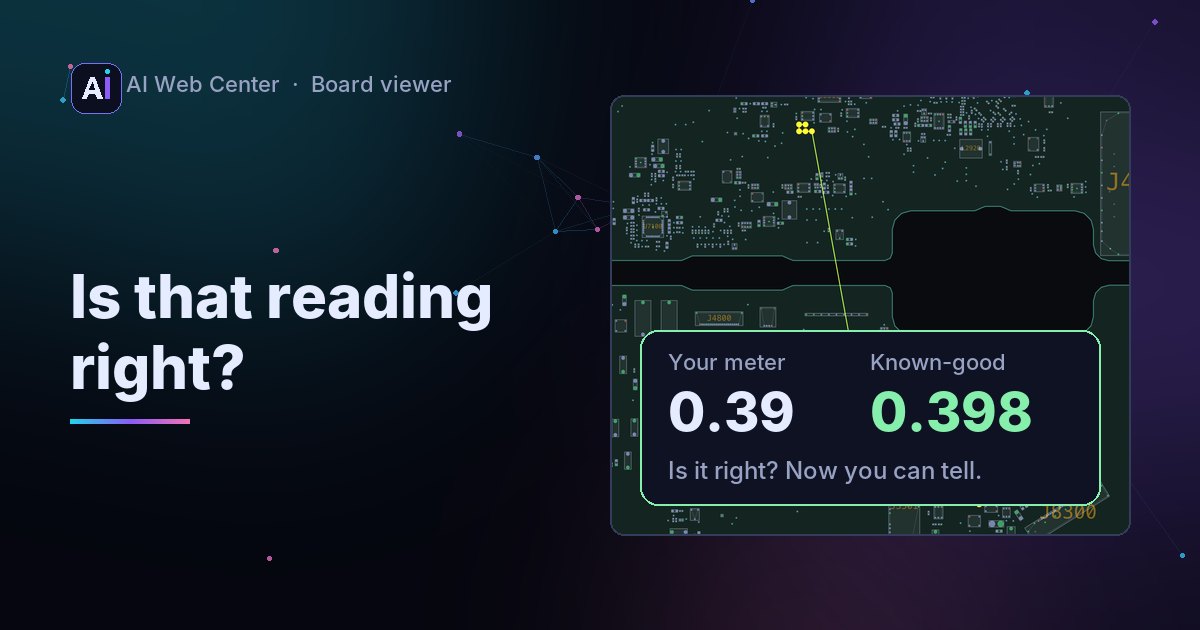
Open your board in our free board viewer and go to the Power AI tab. Despite the name, this part uses no AI: it reads the rail names on your board, sorts them into those stages and draws each stage on the board in its own color, biggest rails first. Each rail shows its known-good readings from OpenBoardData where the archive has them, so you can probe your way up the sequence and compare as you go.
To try it without a file of your own, press Load the J113 demo. It opens an Apple laptop board with its schematic and its repair data.
The real sequence, where someone wrote it down
For some boards, OpenBoardData’s contributors have written out the actual power sequence and diagnostic steps. When your board has those notes, the Power AI tab steps through them line by line. Each line lights up the rails it names on the board. The Repair tab has the full notes, where every part and net is a link to the board and the schematic.
Boards without notes: your own AI
For other boards, the schematic holds the sequence, and reading it out of the drawings takes an AI that can see the pages. We didn’t want your schematics on our server. So the viewer writes a prompt with this board’s rail names in it. Copy it to the AI you already use, attach the schematic PDF, and paste the answer back. The viewer then steps through that sequence on the board, keeping only rail names that are really on it. AI can misread a schematic, so check each step against the drawing before you trust it.
Other makers
Most other laptop makers don’t put the power state in rail names, so the stages work best on Apple boards. The schematic route works on any board with a schematic that has real text.