// blog
A Free CAM Reconciliation Wizard That Runs in Your Browser
The CAM reconciliation wizard walks through a year-end reconciliation in six steps: the property, the general ledger export, which statement line each account goes on, the rows worth a second look, each tenant’s lease rules, and the statements. It reads exports from Yardi, MRI or Excel in the browser, so the ledger and leases are never uploaded. It handles caps, gross-up, admin and management fees, base years, anchors, marketing funds and mixed-use cost groups, and it’s checked against seven published worked examples. It’s a free demo, not accounting, legal or tax advice.

Property management software can calculate CAM recoveries, but only after every lease’s rules are set up in it, and that setup is the part nobody has time for. So the year-end reconciliation lands in a spreadsheet. We built a free wizard for exactly that spot: the numbers you already have, one step at a time.
Six steps
- Property. The center’s name, the year and its square feet. Mixed-use properties can split costs into groups, such as retail and offices, each shared only by its own tenants.
- Ledger. The year’s GL detail, exported from Yardi, MRI or anything else as Excel or CSV. Two files are fine if the year sits in two systems. Reports grouped under account headings, with totals and balances in between, read too.
- Accounts. Which statement line each account belongs on. It guesses from the account names, and you correct them.
- Review. Rows worth a second look: possible duplicates, capital items, legal fees, bills from another year, credits and unusually large amounts. You decide each one, or spread a capital item over its years.
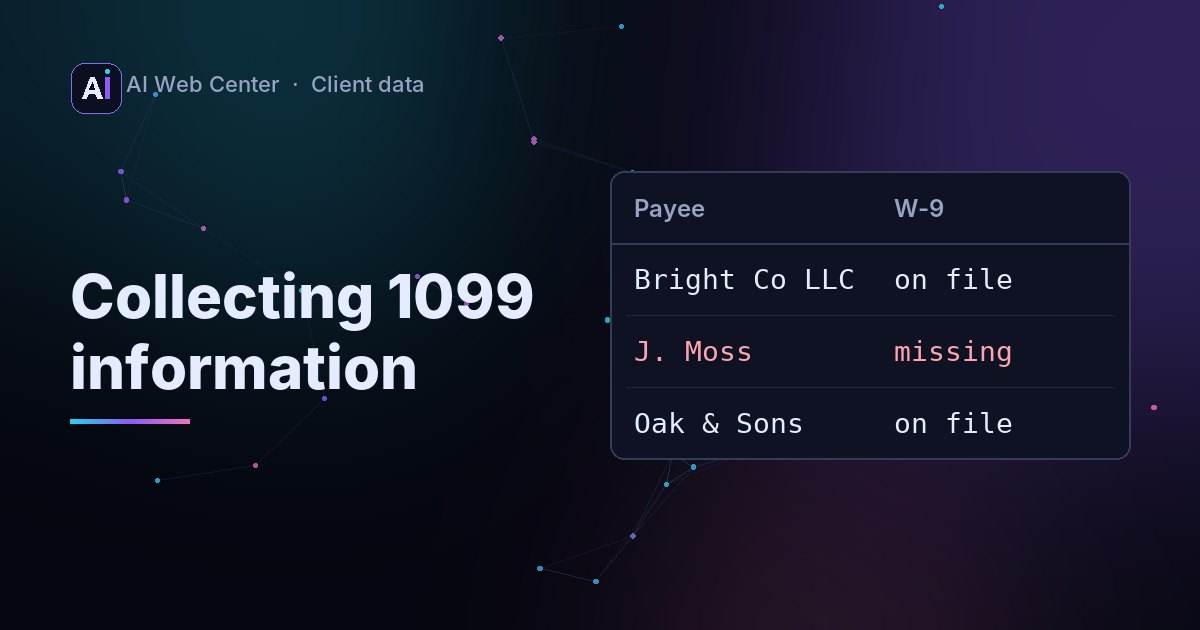
- Tenants. Load the rent roll, and move-ins and move-outs are worked out by month. Then each lease’s rules, either one tenant at a time or for every tenant at once in a spreadsheet you fill in Excel.
- Statements. A check that the ledger ties out, each tenant’s statement, every line traced to its ledger rows, a billing file, and all statements printed at once.
The lease terms it handles
Caps, cumulative or not, before or after gross-up, and caps that cover taxes and management too. Gross-up. Admin and management fees, with the costs each one is charged on. Base years and expense stops. A stated share, a different share for one line, and a denominator with a floor. Anchors left out of the share. Fixed CAM charges, marketing funds that rise each year, and Hawaii’s general excise tax at the rate you enter. Anything else goes on as a labelled charge or credit, with the lease section on the backup.
Checked against figures we didn’t write
Under Check it against published examples are seven worked examples from other people, entered as their sources give them, with their answers next to the wizard’s:
- Harbor Court from Agora Real: a cap, gross-up and a capital exclusion, $100,265.63 due.
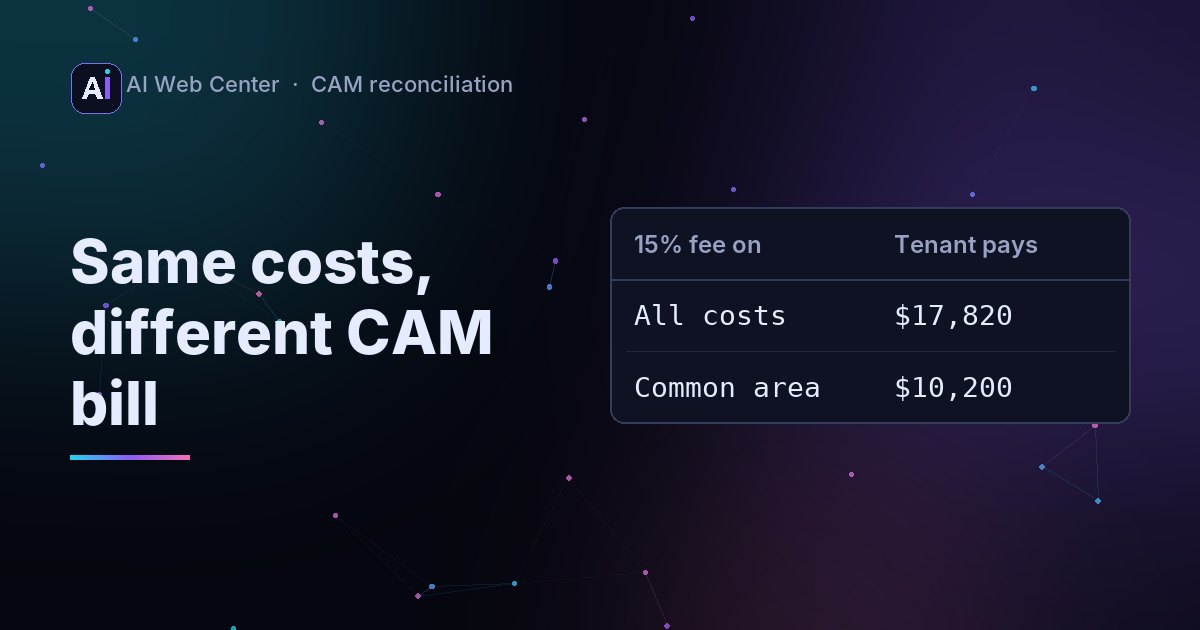
- The same 15% admin fee on four different bases, from Julian R. Sterling: $17,820 down to $8,400 for the same tenant.
- Three from GrowthFactor: whole center or occupied space, a year-end true-up, and caps in year three.
- Gross-up the way Yardi’s own guide computes it.
- A simple share and shortfall from Precision Accounting.
All 21 figures match. We also ran the rules of nine real shopping-center leases filed with the SEC through it; each rule’s quote was found in its lease, and each tenant’s charge matched a separate calculation. The case study has the details.
Nothing leaves your computer
The ledger and leases are read on your device and held in memory while the page is open. There’s no upload, no account and no AI connection; the site chat and page timer are off on this page. A section on the page explains it for your IT team, with how to check it in the browser’s developer tools.
What it isn’t
It’s a free demo, not accounting, legal or tax advice, and it comes with no warranty. It’s been checked against published examples, not against your leases, so compare its statements with your own before you send one, and use real data only if your company allows it.
Open the wizard and press Try the sample center to look around without any data. There’s also a workbench example where an AI agent reads a fictional center’s leases and code does the math.
Frequently asked questions
Is my ledger uploaded anywhere?
No. The wizard reads your files with JavaScript on your own device and holds them in the page's memory. Closing the page clears them. The only copy is a file you choose to save with Save my work.
Does it work with Yardi and MRI?
It reads general ledger exports and rent rolls saved from either as Excel or CSV, including reports grouped under account headings. It doesn't connect to either system.
Does it use AI?
The calculations don't. Every figure is ordinary code, so the same inputs always give the same result. An optional lease reader writes a prompt you can take to the AI tool your company approves, and checks the answer you paste back; nothing is sent from the page.
Can I rely on its statements?
Treat it as a demo. It isn't accounting, legal or tax advice and comes with no warranty. Results depend on the lease terms and figures you enter, so check every statement against the leases and your records before you send it.
Sources
- Agora Real: CAM reconciliation, how to calculate and review the year-end true-up
- Julian R. Sterling: How is a CAM administrative fee calculated?
- GrowthFactor: CAM charges explained for retail tenants
- Yardi Voyager Commercial User's Guide: Setting Up Recovery Profiles
- Precision Accounting: CAM reconciliation explained