// blog
How to Open a Hospital Scan CD on Windows
Insert the CD and open it in File Explorer. Most hospital CDs include a viewer program (an .exe file) that shows the images straight from the disc; run it if the CD came from your hospital or imaging center. If it doesn’t start or doesn’t work, copy the whole CD to a folder and open that folder in another DICOM viewer, for example one that runs in the browser.
On Windows, a scan CD is meant to just work: insert it, a viewer starts, and you see your images. When it doesn’t, the images are still on the disc and easy to open another way.
Step 1: open the CD
Insert the CD. Windows may show an AutoPlay prompt asking what to do with the disc; choose to open the folder, or open File Explorer, click This PC and double-click the CD drive.
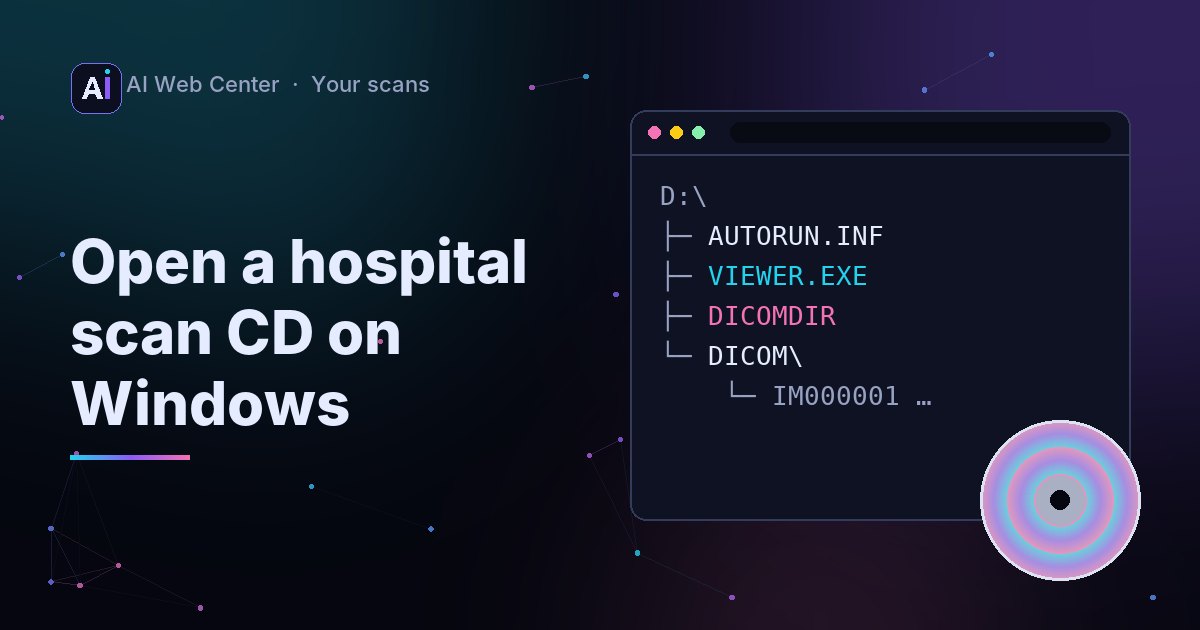
You’ll usually see something like this:
DICOMDIR: the index of what’s on the disc.- A
DICOMfolder (or similar) with the images, in files with short names and no extension. - A viewer program, for example
VIEWER.EXE, often with anAUTORUN.INFthat tells Windows which program to start.
Some CDs hold the images as a single ZIP file instead of a folder. That’s fine: see step 3.
Step 2: try the CD’s own viewer
If the CD came from your hospital or imaging center, double-click the viewer program. Most run straight from the disc without installing.
If it starts, you’re done. If it shows an error, or nothing happens, don’t worry about it: you don’t need that program.
Step 3: copy the CD, then use any DICOM viewer
- Copy the whole CD into a folder, for example
Documents\Scans 2026-11. Reading from a folder is faster, and you keep a copy. - Open our free DICOM viewer in Edge or Chrome.
- Click Open a folder and choose the folder you copied.
The images open as a series; scroll with the mouse wheel. They’re read in your browser and never uploaded, and Close and delete clears them from the page.
If the CD (or a download) has a ZIP, click Open files and choose the ZIP itself. It’s unzipped in your browser; there’s no need to extract it first.
If you’d rather install an app, Weasis is a free, open-source viewer for Windows (and macOS and Linux).
No CD drive?
Many laptops don’t have one. A USB CD or DVD drive works fine. Or ask for a download: many hospitals and imaging centers offer the same images through their patient portal.
If some images won’t show
A CD can hold several scans. Open each series’ folder on its own if the one you want doesn’t appear. If a viewer says the files use compression it can’t read, see why a DICOM file won’t open.
On a Mac instead? See how to open a hospital scan CD on a Mac.
Key takeaways
- Most scan CDs have a Windows viewer that runs from the disc; try it first.
- If it fails, copy the CD to a folder and open that in any DICOM viewer.
- A ZIP on the CD opens directly in the browser viewer.
- Only run programs from CDs you got from your own hospital or imaging center.
- The radiologist’s report, not the viewer, says what the images mean.
Run a practice or an imaging center? We’re glad to share what we know. When you want a portal that makes all of this easy for your patients, we’ll build it for you, and because we work with AI-assisted development, it costs far less than you might expect. Let’s talk.
Frequently asked questions
Is it safe to run the program on the CD?
If the CD came straight from your hospital or imaging center, it's their viewer and generally fine to run. If the CD came from somewhere you don't know, don't run programs from it; open the images in your own viewer instead.
The viewer starts but shows an error. What now?
Older CD viewers don't always run on current Windows versions. Copy the CD to a folder and open the folder in another DICOM viewer; the images are standard files and don't need the program on the disc.
My laptop has no CD drive.
A USB CD or DVD drive works with any Windows laptop. Or ask the hospital or imaging center for the images as a download through their patient portal.