// blog
A Project Tracker With No Surprises: What You Should See While Your Software Is Built
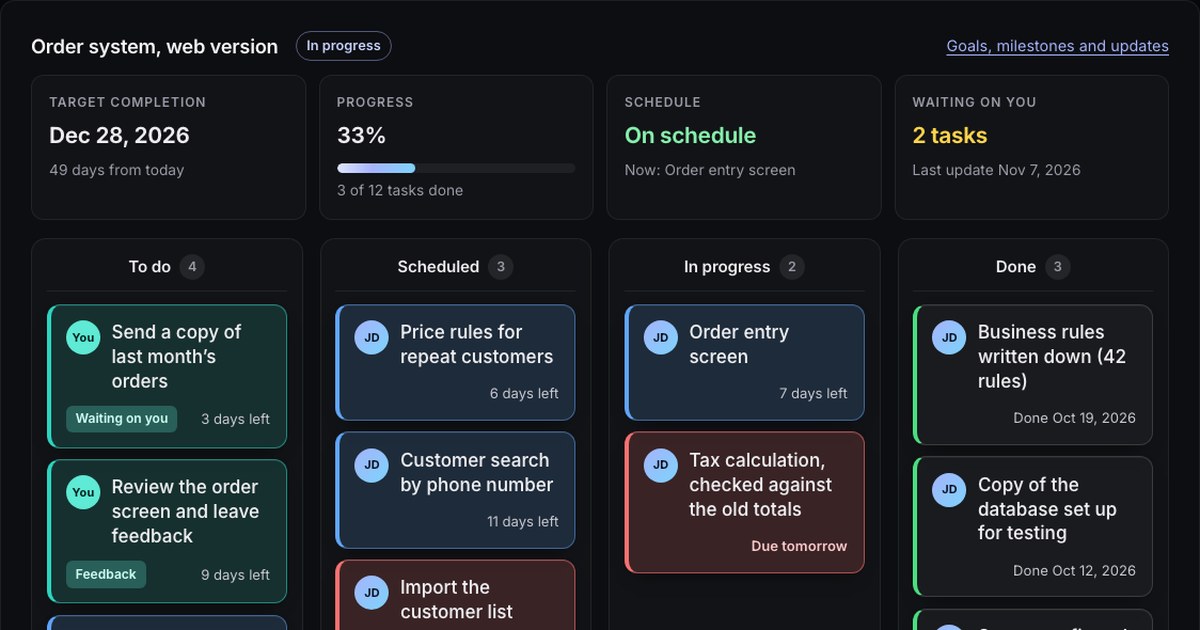
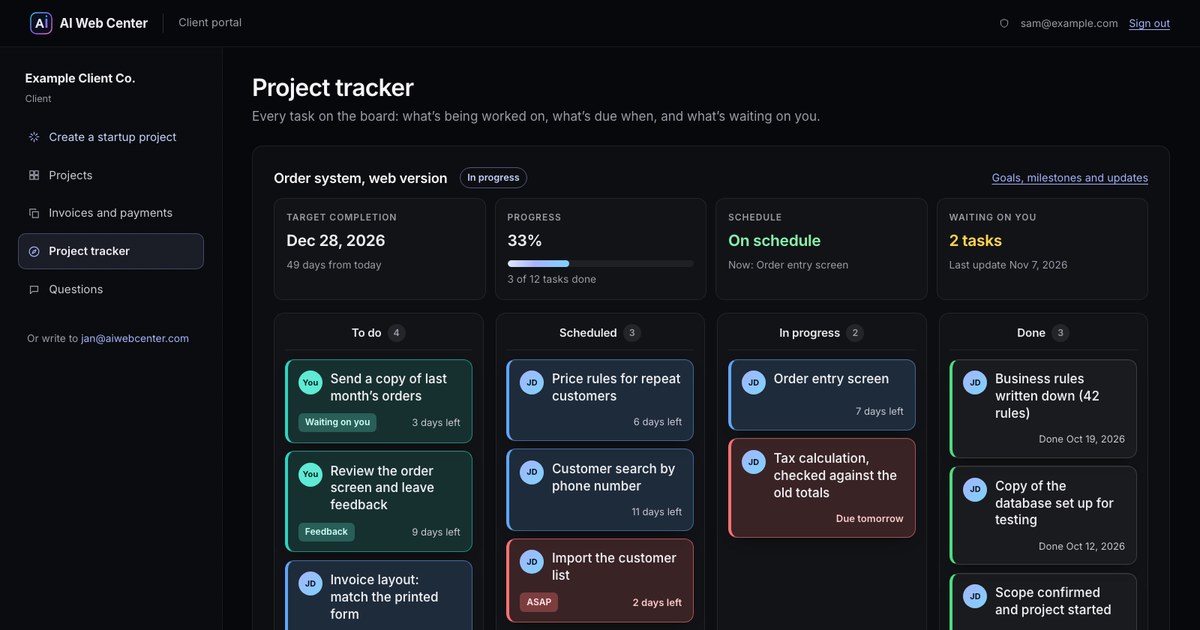
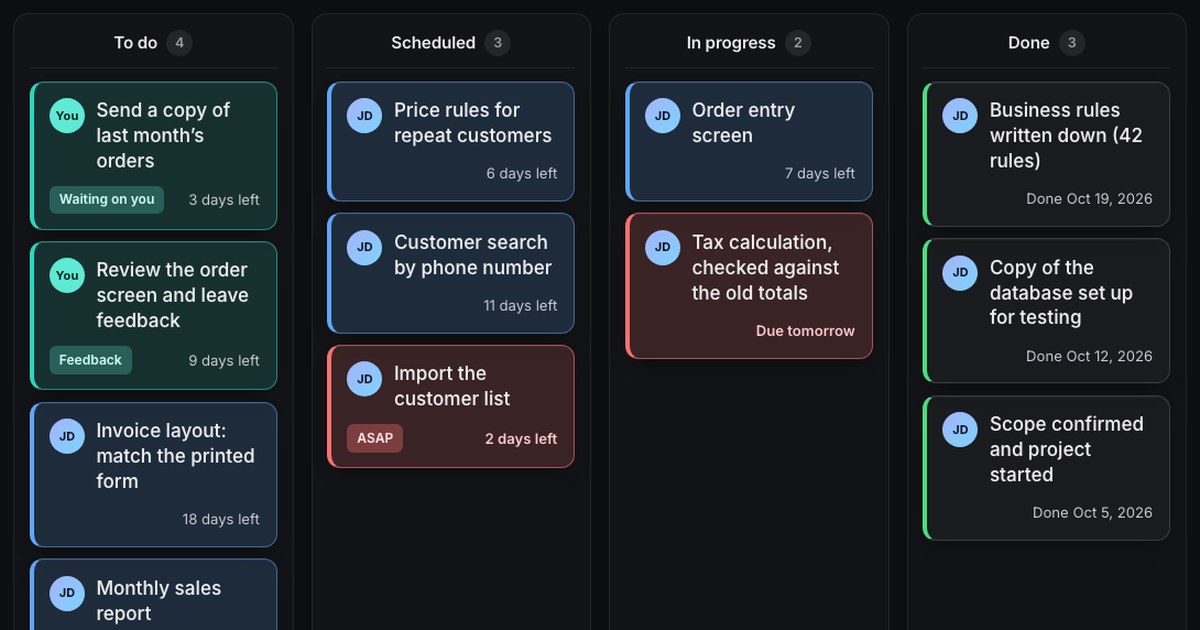
While your software is being built you should be able to see, at any moment and without asking: the target completion date, how much is actually done, which tasks are past their date, what’s waiting on you, and what’s being worked on now. Our client portal’s project tracker shows all five above a board of task cards, on a computer or a phone.
Software projects rarely go wrong all at once. A task slips by a few days, an answer from the client takes a week, a part turns out bigger than it looked. Each of those is small. The trouble starts when nobody sees them until they’ve added up.
That’s why our client portal has a project tracker, and why it shows the things a client actually needs to know, rather than a percentage that only ever goes up. Here are the five, whoever builds your software.
1. The target date, in days
A date like “December 28” is easy to read past. “49 days from today” isn’t. The tracker shows both, at the top, for every project. If the date moves, you see it move.
2. What’s actually done
Progress here is counted from the tasks: done tasks count in full, tasks being worked on count half. “33%” means a third of the work on the board is finished, not that someone felt a third of the way there. Next to it: “3 of 12 tasks done”, so you can check the sum yourself.
3. What’s late
Every task has a due date, and a task past its date says so on its card (“2 days late”) and in the schedule at the top (“1 task is past its date”). Cards due within two days, or marked ASAP, are red. Nothing is tidied up before you see it, which is the whole point: a slip you see on day one is a conversation, a slip you see on day forty is a problem.
4. What’s waiting on you
Projects wait on clients more often than anyone admits: a copy of the data, an answer about a price rule, a review of a screen. Those cards are teal and carry your name (“You”), and the top of the tracker counts them under Waiting on you. If the project is held up by you, you know it without anyone having to send an awkward email.
5. What’s being worked on now
The In progress column is short on purpose. It shows what’s on the bench today, and the schedule box names it (“Now: Order entry screen”).
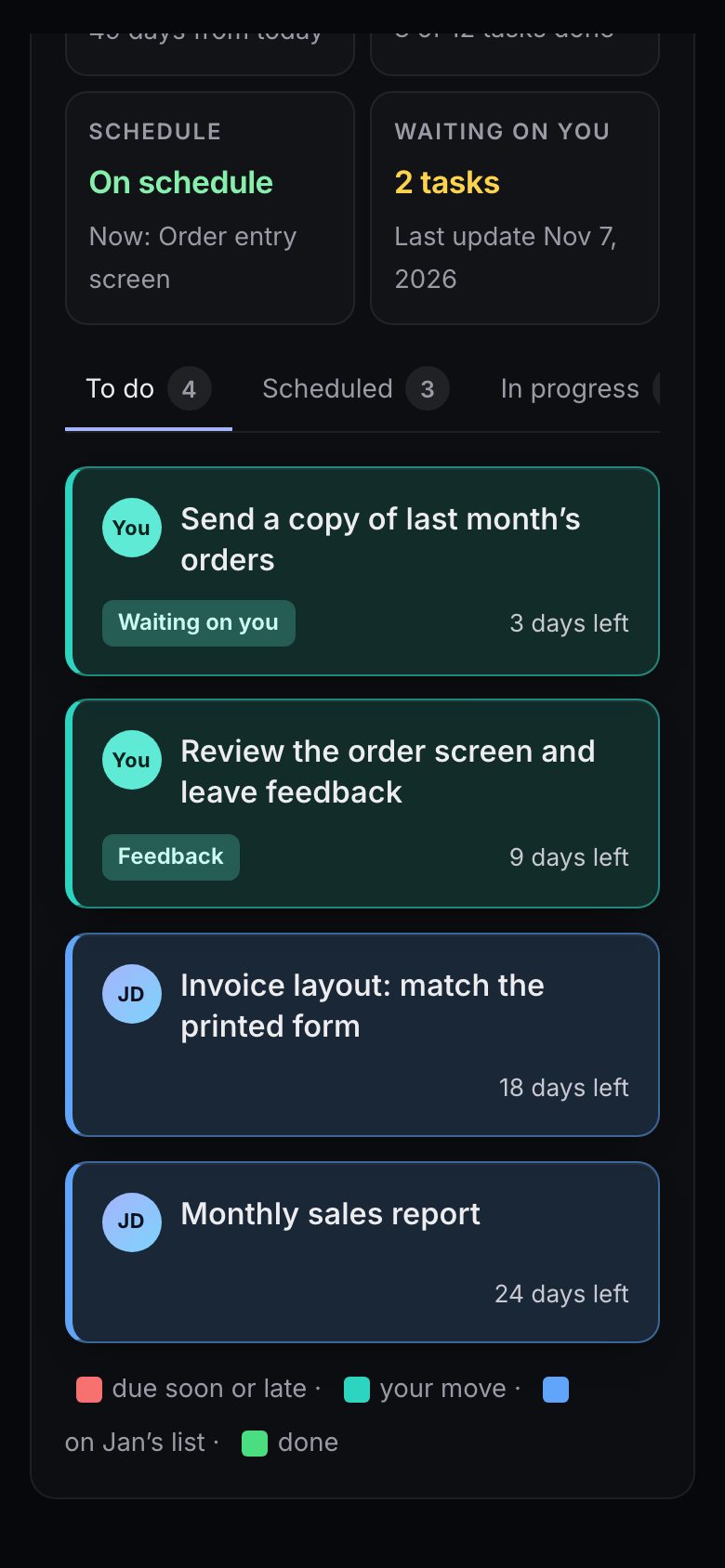
On a phone
The board fits a phone too. The four columns become tabs, each with its count, and the cards stack under each other with the same colors: red for urgent, teal for your move, blue for work on our list, a green stripe for done.
Goals and milestones
The board is the day-to-day view. The bigger picture lives one click away under Projects: the goals agreed at the start, the milestones (each linked to the invoice that pays for it) and every update, in order.
Try it
Make an account with your name and email address and open Project tracker. Until you have a project of your own, it shows the example from these screenshots.
Frequently asked questions
Can I move the cards myself?
No. The board is kept by the person doing the work, so it always shows where the project really is. If something on it looks wrong to you, ask in Questions and it gets corrected or explained.
What does it mean when a card is teal?
It's your move: the task needs something from you, such as a copy of your data, an answer or a review. Those are also counted under Waiting on you at the top of the tracker.
Does the tracker work on a phone?
Yes. On a phone the four columns become tabs, each with its count, and the cards stack one under the other.