// blog
Let Visitors Edit a Photo Before Your Form Uploads It
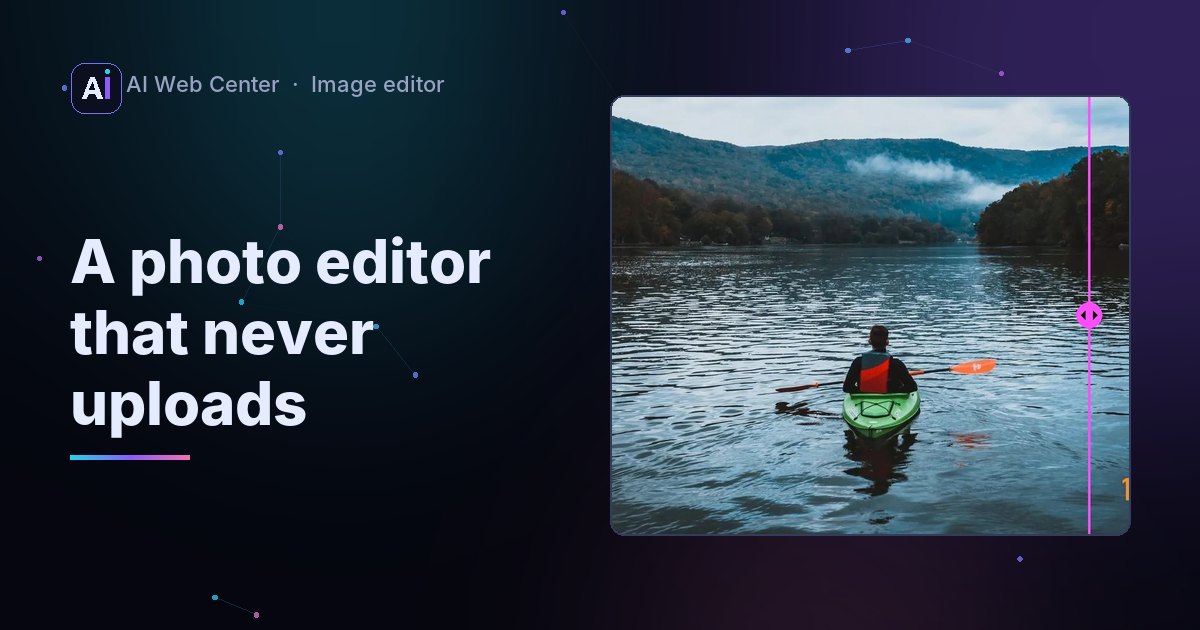
The embedded editor runs in a frame from another site, so it can’t touch your form. When the visitor is done, it posts the finished image to your page with postMessage, transferring the bytes rather than copying them. A small script on your page checks the sender, wraps the bytes in a File, puts it into your form’s file input with a DataTransfer, fires a change event, and also dispatches an event with the file. Your form then uploads it like any file, already cropped, sized and compressed in the browser.
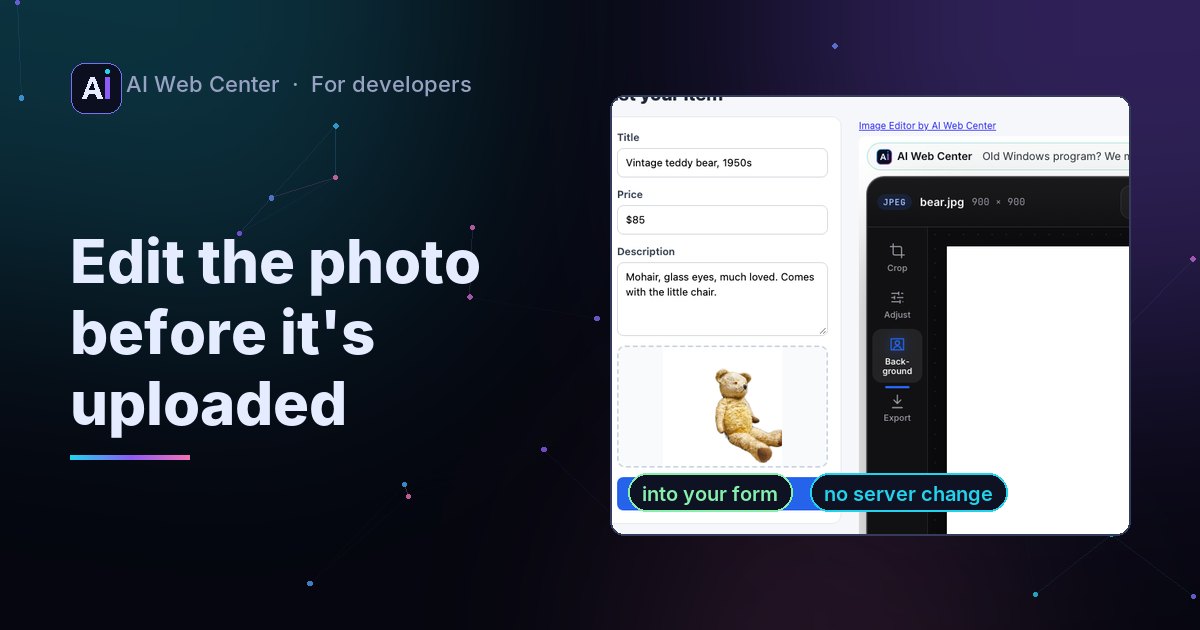
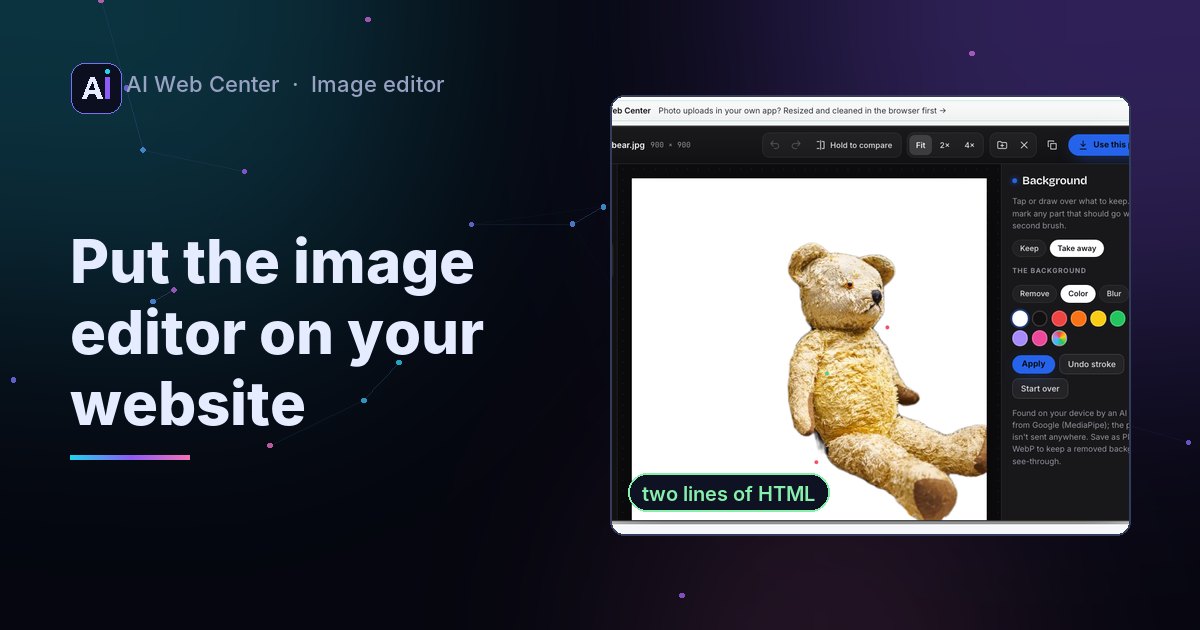
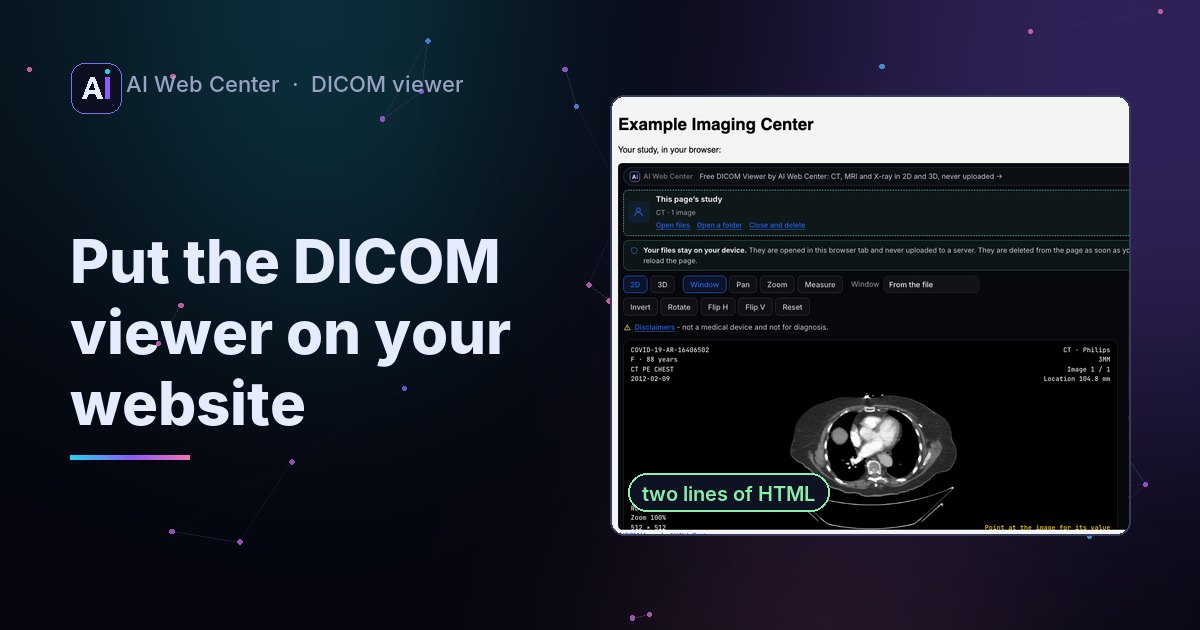
Our image editor can sit on any website with two lines of HTML (the site owner’s view). For a site with an upload form, the useful version is the one where the visitor edits the photo and it lands in the form, already right. Here is how that handoff works, in case you want to build something like it.
The setup
<form action="/listings" method="post" enctype="multipart/form-data">
  <input type="file" name="photo" id="photo" hidden>
  <div class="aiwc-image-editor" data-save="page" data-input="#photo"
       data-done="Use this photo" data-format="jpeg" data-max-kb="300" data-max-side="1600"></div>
  <button>Publish</button>
</form>
<script src="https://aiwebcenter.com/embed/image-editor.js" async></script>
The script turns the div into an iframe of our editor and passes the data- options in its address.
1. The editor makes the file
When the visitor presses Use this photo, the editor renders the finished image at full size: the crop, the adjustments, any text or blur, the watermark. Then it applies your rules, in this order:
- Longest side. Larger than
data-max-side? It’s resized down. - Format.
data-formatfixes it, here JPEG. - Size. For JPEG, WebP, AVIF and PDF,
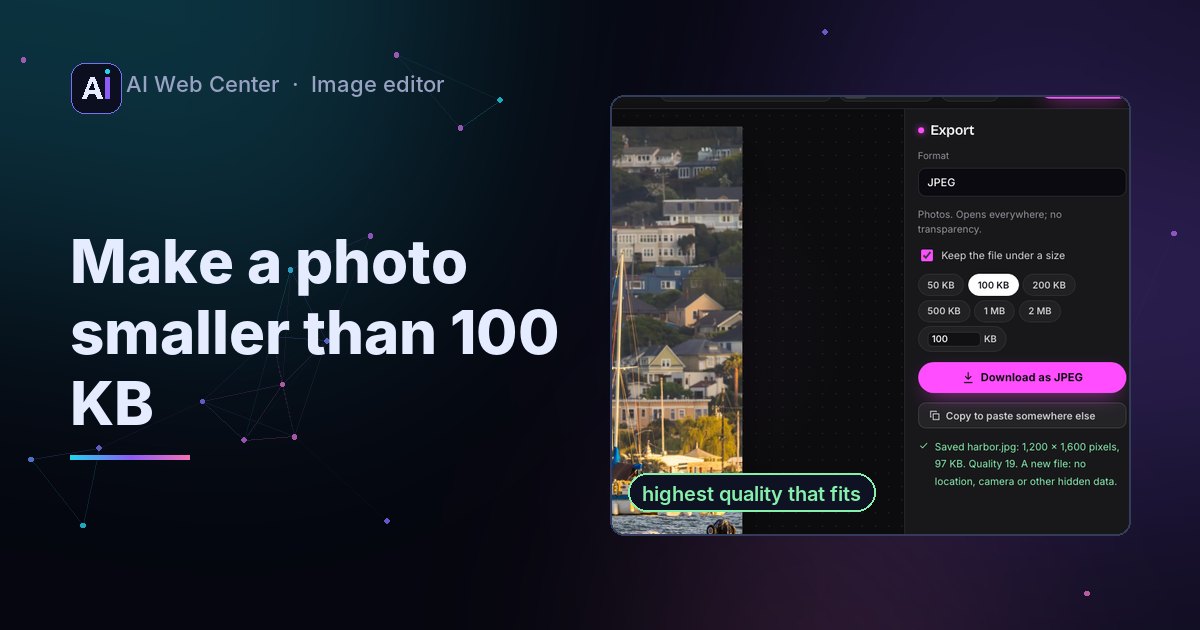
data-max-kbstarts a binary search over quality from 10 to 95, about seven encodes, keeping the highest that fits. If quality 10 is still too big, the image shrinks to 80% each way and the search runs again.
A new file carries none of the old one’s metadata, so the GPS position, the camera’s serial number and the owner’s name are gone.
2. It goes to your page, transferred
The editor is a page of ours in a frame. It can’t reach into your form, and your page can’t reach into it. They talk with postMessage:
window.parent.postMessage(
  { type: "aiwc-image:saved", name, mime: blob.type, width, height, data },
  "*",
  [data],
);
data is the file’s ArrayBuffer, and listing it as the third argument transfers it: the bytes move to your page instead of being copied, so a large photo isn’t in memory twice. The target is "*" because the editor can’t know your site’s address in advance; the message goes only to the frame’s own parent, which is your page.
3. Your page checks the sender
On your page, the script accepts the message only if it came from our origin and from the frame it created:
window.addEventListener("message", (e) => {
  if (e.origin !== "https://aiwebcenter.com") return;
  if (e.source !== frame.contentWindow) return;
  if (e.data.type === "aiwc-image:saved") saved(e.data);
});
Checking e.source matters when a page has more than one frame: a message from some other frame of ours wouldn’t be taken for this editor’s.
4. Into the file input
A script can’t set a file input’s value. It can set its files:
const file = new File([d.data], d.name, { type: d.mime });
const dt = new DataTransfer();
dt.items.add(file);
input.files = dt.files;
input.dispatchEvent(new Event("change", { bubbles: true }));
DataTransfer is the object behind drag and drop, and its files is a real FileList, which is what the input takes. The change event tells any code already watching the input, such as a preview or a validation rule, that a file arrived.
5. Or take it in your own code
Without a form, listen on the div. The same file comes with the event:
editor.addEventListener("aiwc-image-saved", (e) => {
  const body = new FormData();
  body.append("photo", e.detail.file);
  fetch("/api/photos", { method: "POST", body });
});
e.detail also has the width and height.
What stays the same
Your server. The upload arrives the way it always did, as a multipart form field. It’s just smaller, the right shape, and without the location.
Try it
The guide has a live form that receives the photo, every option and the full script: the image editor on your website. The script itself is short and readable: image-editor.js.
Building an upload flow, a listing tool or a portal and want the photos right before they reach your server? We do that.
Frequently asked questions
Can a script set a file input's value?
No, the value can't be set to a file path. But a file input's files property can be assigned a FileList, and a DataTransfer object is the standard way to make one: add a File to its items and assign its files to the input.
Why postMessage and not a shared URL?
The editor is a page from another origin inside a frame. Neither side can read the other's memory or storage. postMessage is the one channel built for that, and it can transfer an ArrayBuffer instead of copying it.
Does the form still need a server change?
No. The file arrives in the input as if the visitor had picked it, so the form uploads it the way it already does. The only difference is that it's smaller, cropped and without its GPS location.
Can the size limit fail?
The editor tries qualities until the file fits. If even the lowest quality is too big, it makes the image smaller and tries again, so the limit is met unless it's unreasonably small, and then it says so.